Electromix Pro WooCommerce Setup
In this article, you’ll learn how to set up and customize the WooCommerce of the Electromix Pro theme, This guide will help you configure these settings to align with your site’s branding and functionality needs.
Reminder: Ensure the WooCommerce plugin is activated. Without it, the WooCommerce option won’t appear, and you won’t be able to access the related settings.
(1) How to manage the Store Notice in WooCommerce ?
Before proceeding, ensure you're logged into your WordPress Dashboard.
To manage the Store Notice in WooCommerce, follow these steps:
- From the WordPress Dashboard, navigate to Appearance > Customize.
- On the Customizer page, go to WooCommerce > Store Notice.
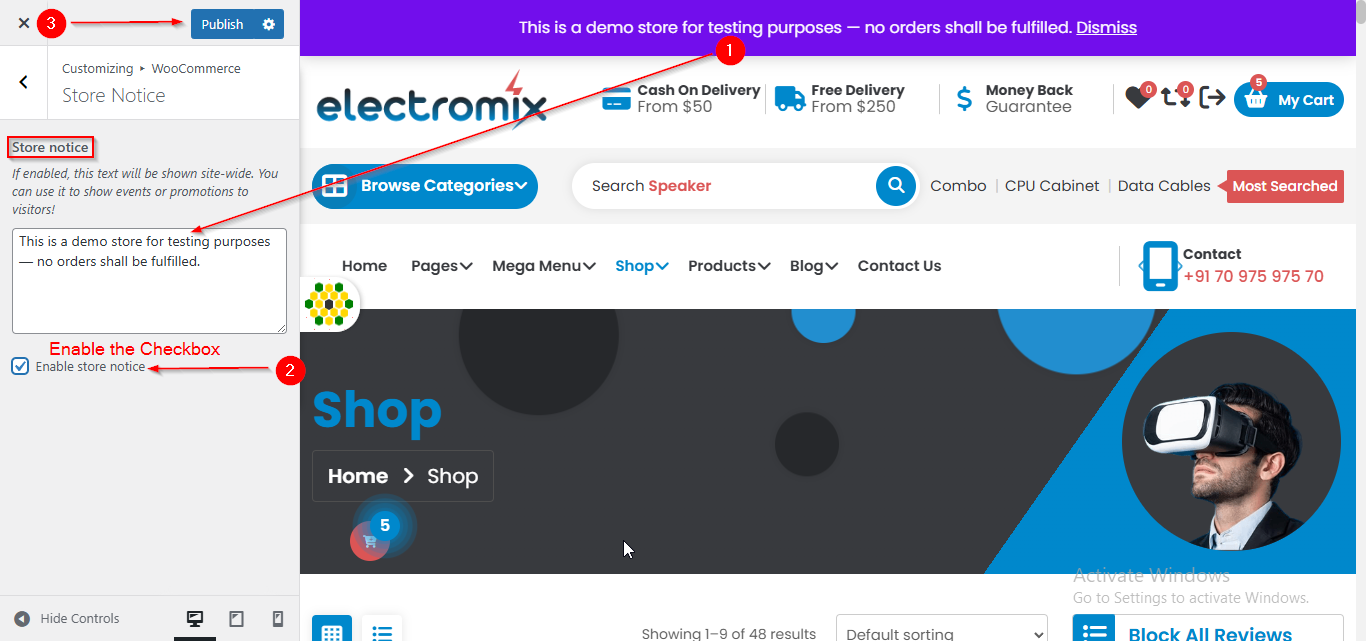
- Here, you can manage the Store Notice.
- Click Publish when you're done.
Note: Ensure the checkbox labeled Enable store notice is checked if you want to display the Store Notice.
(2) How to manage the Product Catalog in WooCommerce ?
Before proceeding, ensure you're logged into your WordPress Dashboard.
To manage the Product Catalog in WooCommerce, follow these steps:
- From the WordPress Dashboard, navigate to Appearance > Customize.
- On the Customizer page, go to WooCommerce > Product Catalog.
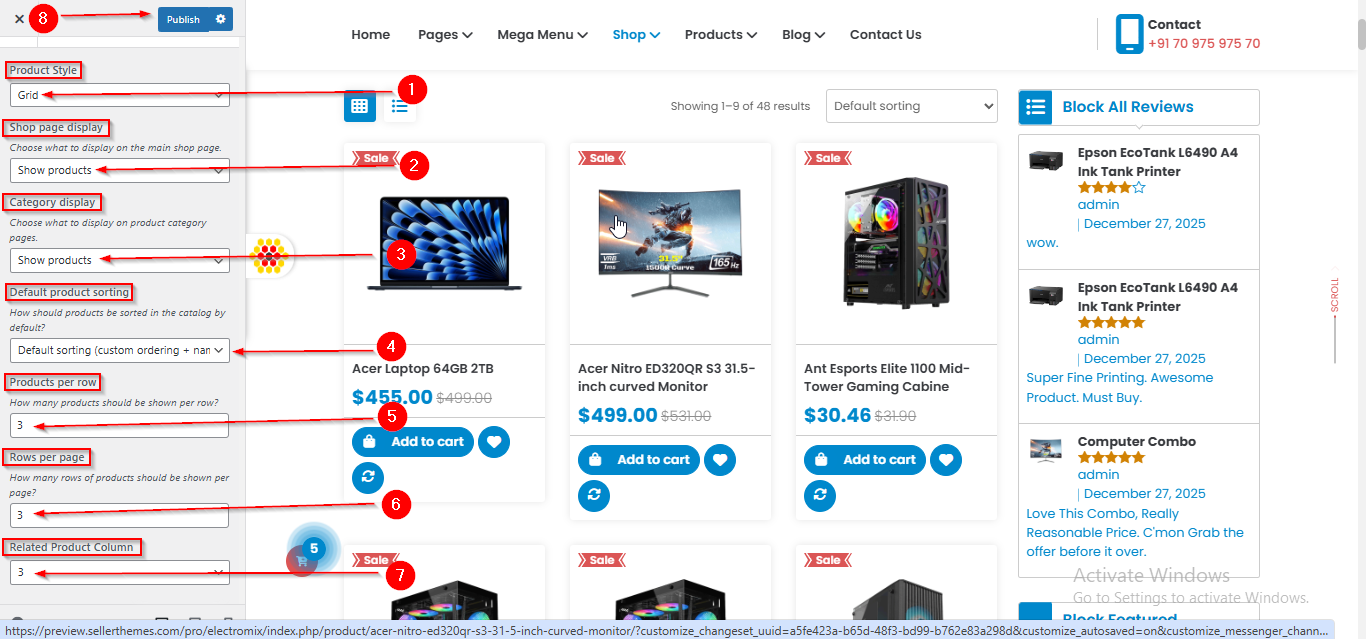
- Here, you can manage various Product settings such as Product Style , what you want to display on the Shop page, what to show on the Product Category page, how you want products to be sorted, products per row, rows per page and related product column.
- Click Publish when you're done.
(3) How to manage the Fly Cart in WooCommerce ?
Before proceeding, ensure you're logged into your WordPress Dashboard.
To manage the Fly Cart in WooCommerce, follow these steps:
- From the WordPress Dashboard, navigate to Appearance > Customize.
- On the Customizer page, go to WooCommerce > Fly Cart.
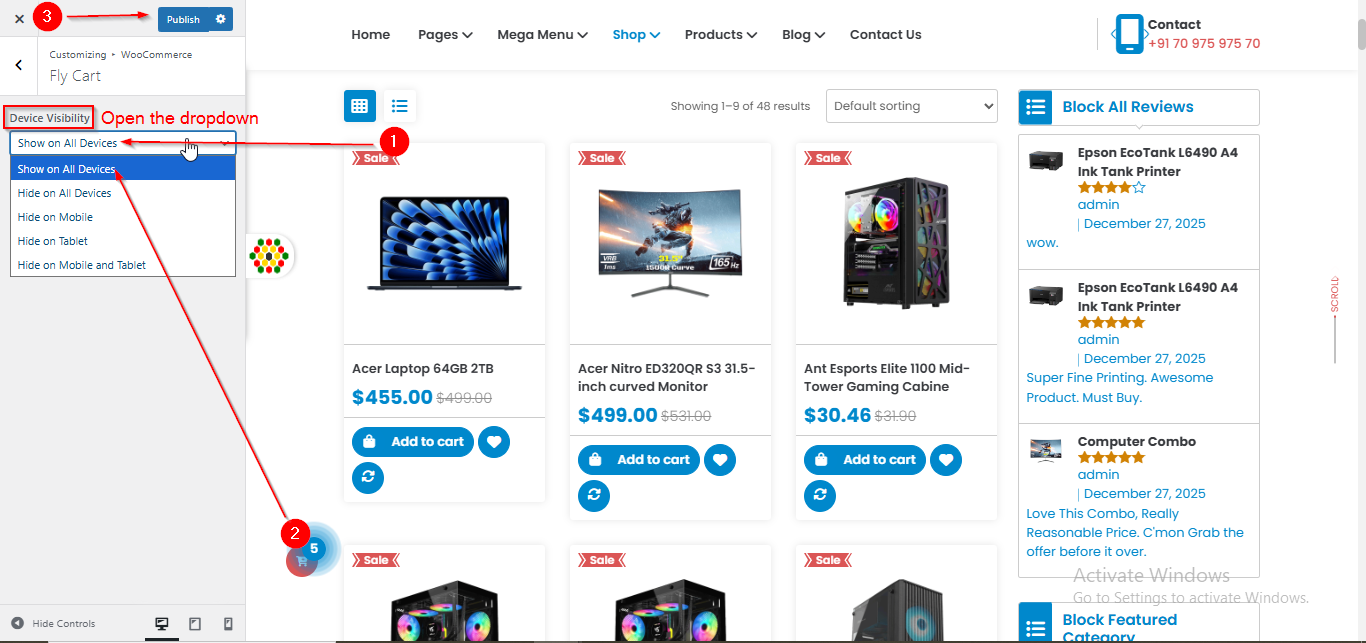
- Open the Device Visibility dropdown to choose on which device you want the Fly Cart to be displayed.
- Click Publish when you're done.
(4) How to Manage the Zoom Magnifier in WooCommerce ?
Before proceeding, ensure you're logged into your WordPress Dashboard.
To manage the Zoom Magnifier in WooCommerce, follow these steps:
- From the WordPress Dashboard, navigate to Appearance > Customize.
- On the Customizer page, go to WooCommerce > Zoom Magnifier.
- Enable the Hide/Showin Mobile checkbox if you want it to display on Mobile view.
- From the Zoom window position dropdown you can choose where you want the zoom magnifier to be.
- Click Publish when you're done.
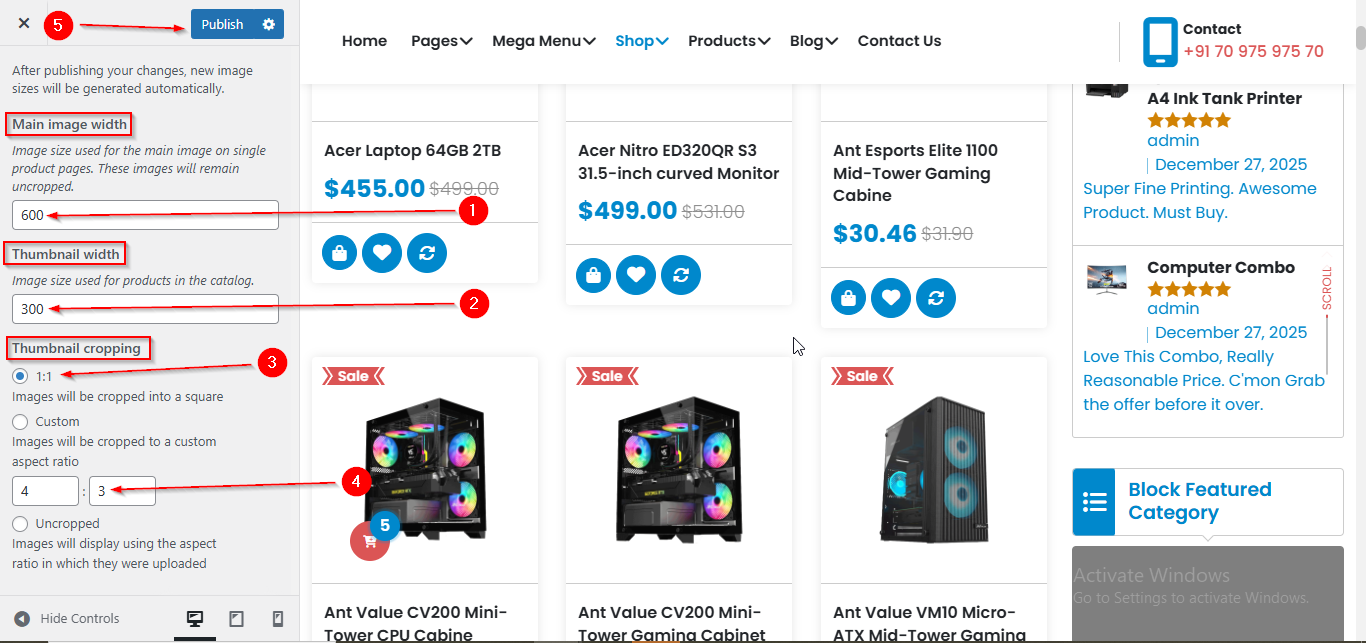
(5) How to Manage the Product Images in WooCommerce ?
Before proceeding, ensure you're logged into your WordPress Dashboard.
To manage the Product Images in WooCommerce, follow these steps:
- From the WordPress Dashboard, navigate to Appearance > Customize.
- On the Customizer page, go to WooCommerce > Product Images.
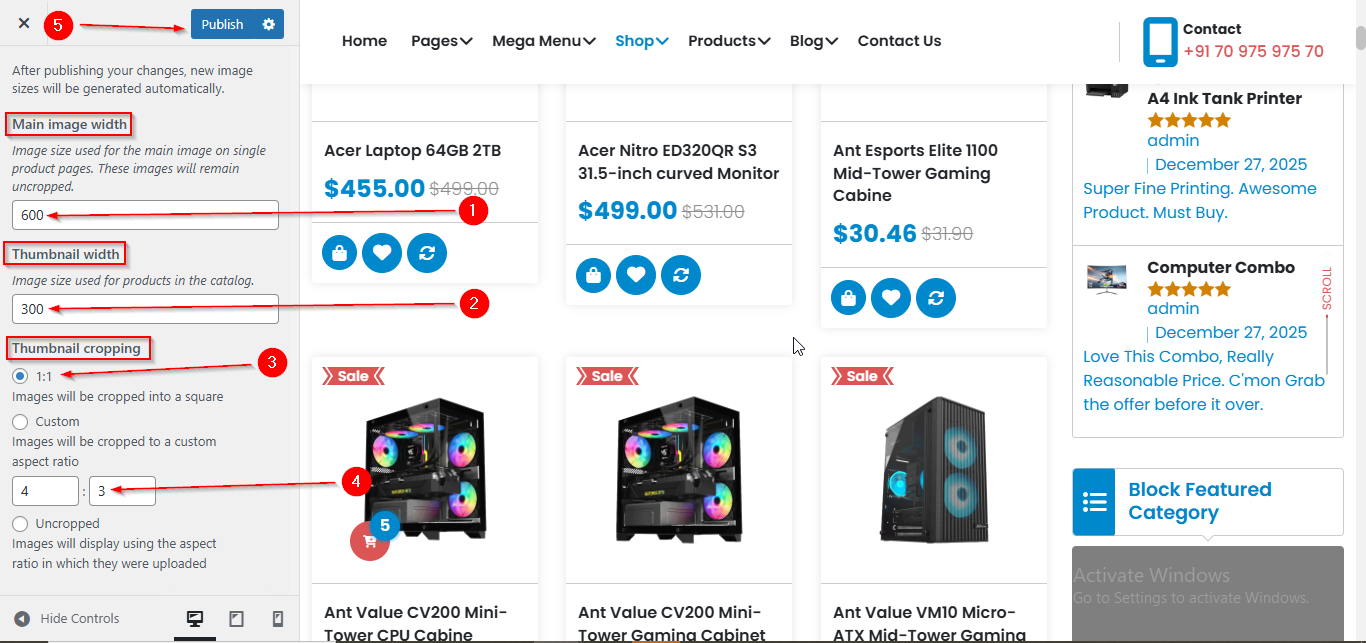
- Here, you can manage various Product Images settings such as Main image width, Thumbnail width, and thumbnail cropping.
- Click Publish when you're done.