Electromix Pro FAQ Setup
In this article, you’ll learn how to set up and customize the FAQ Section of the Electromix Pro theme, This guide will help you configure these settings to align with your site’s branding and functionality needs.
Before we proceed, please note that this theme includes two types of FAQs. We will go through each type separately, step by step, to help you understand how they work.
FAQ Type 1
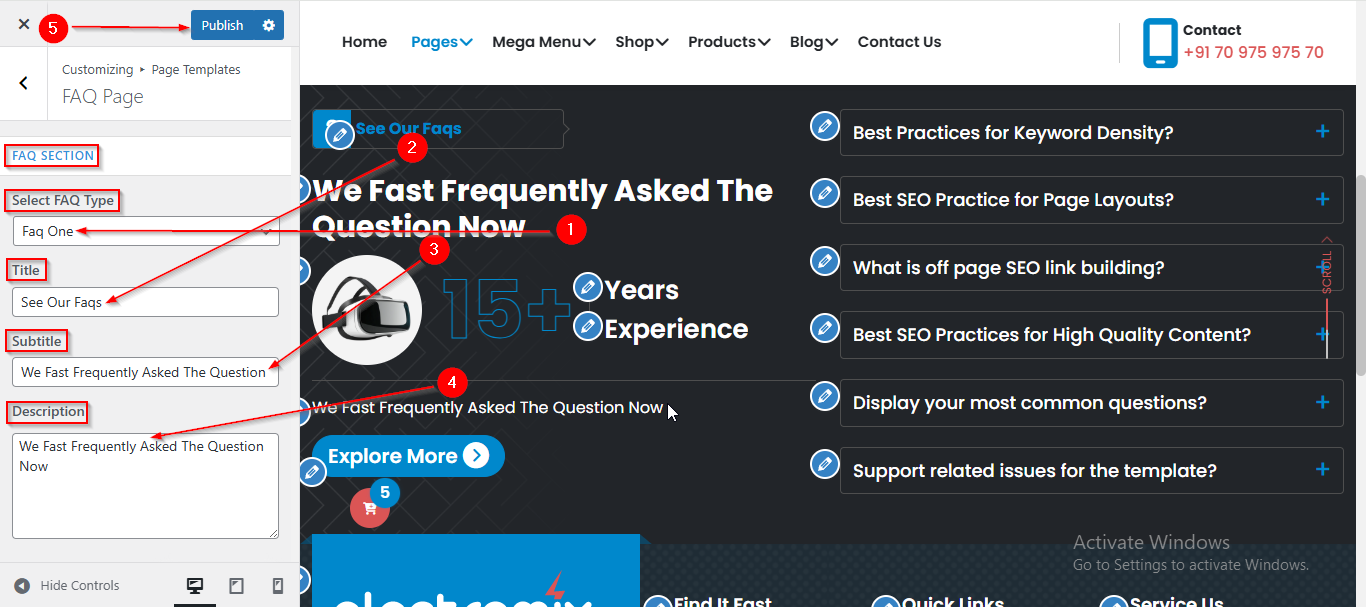
(1) How to manage the FAQ Title , Subtitle and Description in FAQ Type 1 ?
Before proceeding, ensure you're logged into your WordPress Dashboard.
To manage the FAQ Title , Subtitle and Description in FAQ Type 1, follow these steps:
- From the WordPress Dashboard, navigate to Appearance > Customize.
- On the Customizer page, go to Page Templates > FAQ Page.
- Here, from the Select FAQ Type dropdown choose Faq One.
- From below options , you can manage the Title , Subtitle and Description.
- Click Publish when you're done.
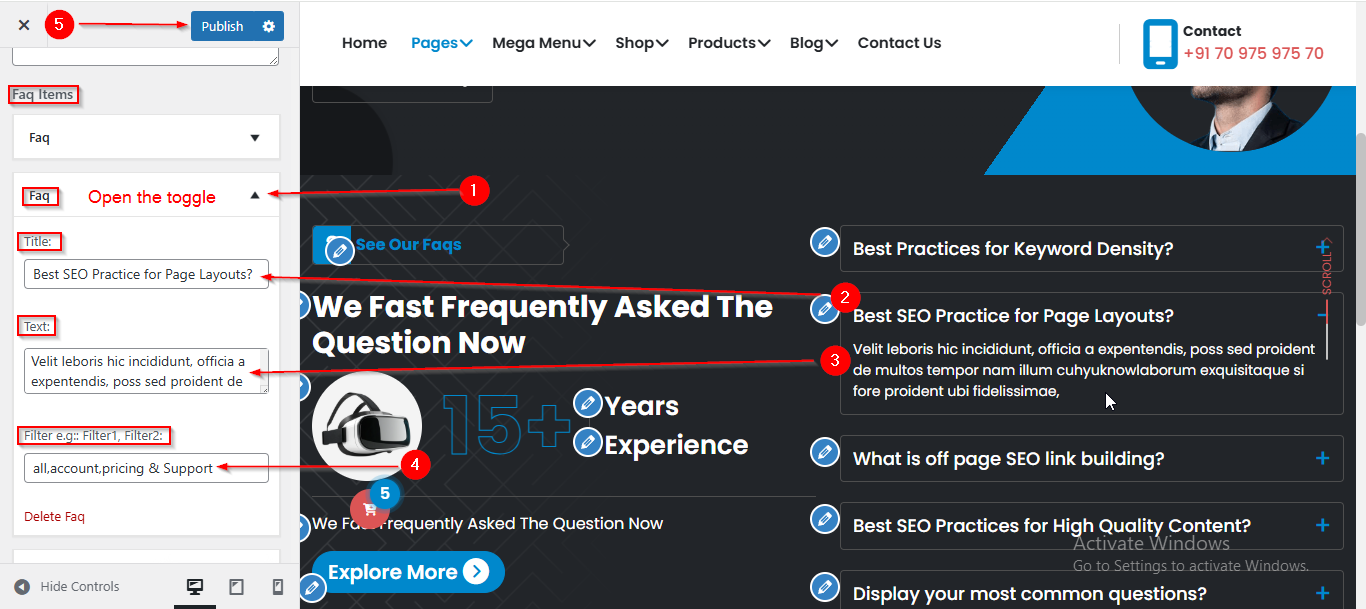
(2) How to manage the FAQ Content in FAQ Type 1?
Before proceeding, ensure you're logged into your WordPress Dashboard.
To manage the FAQ Content in the FAQ Type 1, follow these steps:
- From the WordPress Dashboard, navigate to Appearance > Customize.
- On the Customizer page, go to Page Templates > FAQ Page.
- Scroll down until you see the Faq Items.
- Open the Faq toggle to manage content such as Title , Text and Filter.
- Click Publish when you're done.
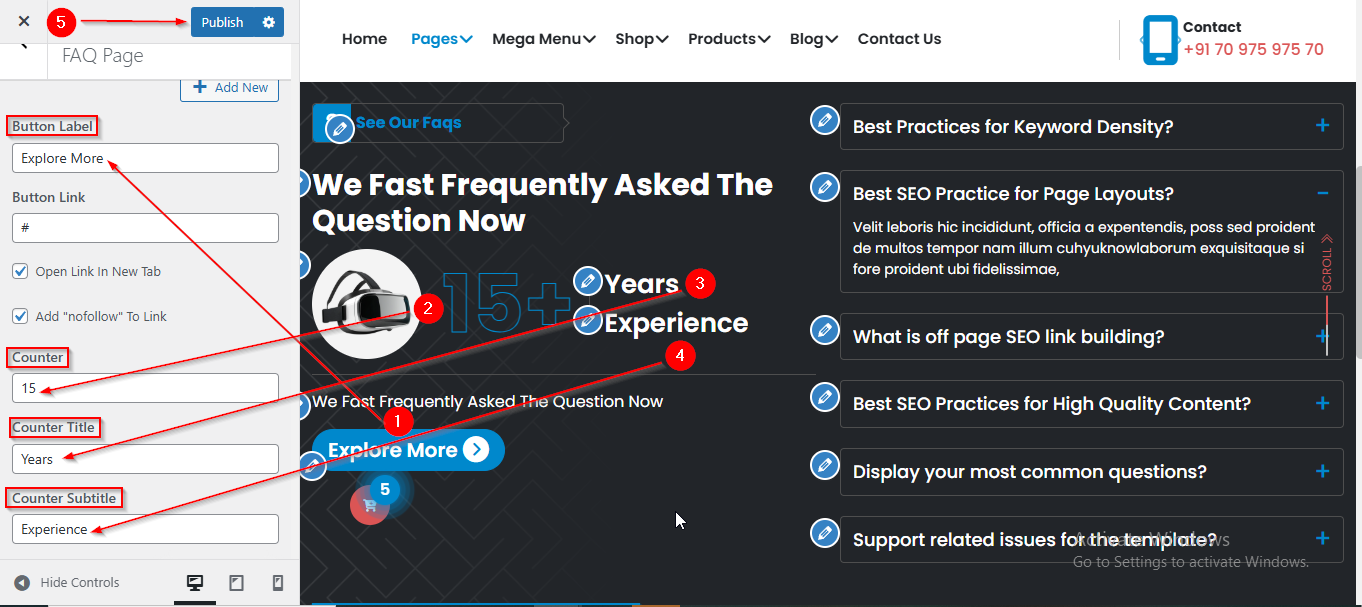
(3) How to manage the FAQ Button and Counter Content in FAQ Type 1 ?
Before proceeding, ensure you're logged into your WordPress Dashboard.
To manage the FAQ Button and Counter Content in FAQ Type 1 , follow these steps:
- From the WordPress Dashboard, navigate to Appearance > Customize.
- On the Customizer page, go to Page Templates > FAQ Page.
- Scroll down until you see the Button Label.
- From here you can manage the Button and Counter content such as Number , Title and Subtitle.
- Click Publish when you're done.
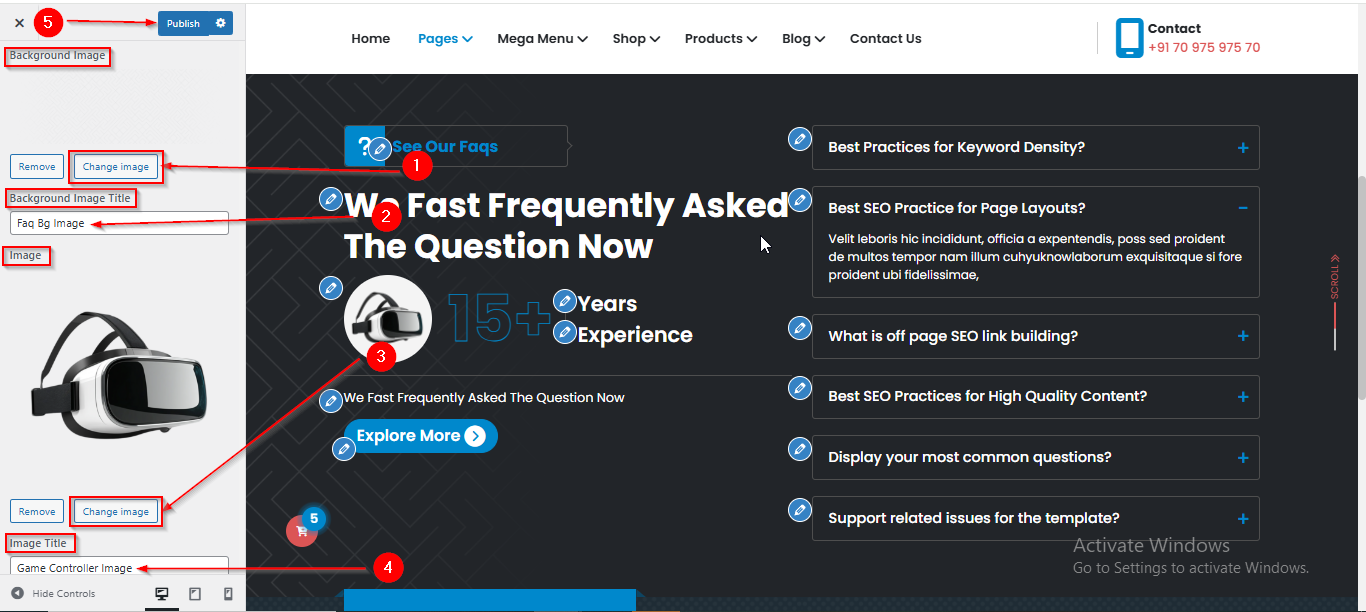
(4) How to manage the Background Image and Image in FAQ Type 1 ?
Before proceeding, ensure you're logged into your WordPress Dashboard.
To manage the Background Image and Image in FAQ Type 1, follow these steps:
- From the WordPress Dashboard, navigate to Appearance > Customize.
- On the Customizer page, go to Page Templates > FAQ Page.
- Scroll down until you see the Background Image option.
- From here you can manage the Background Image.
- Click Publish when you're done.
FAQ Type 2
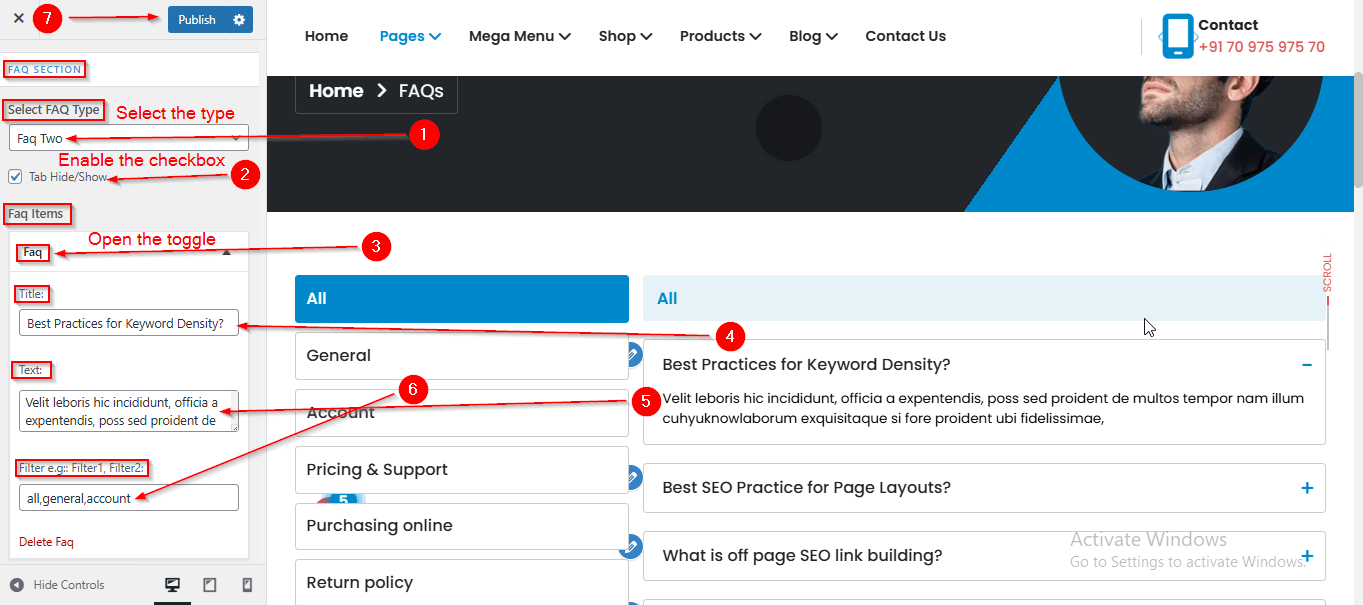
(1) How to manage the Filter Tab and Content in FAQ Type 2 ?
Before proceeding, ensure you're logged into your WordPress Dashboard.
To manage the Filter Tab and Content in FAQ Type 2, follow these steps:
- From the WordPress Dashboard, navigate to Appearance > Customize.
- On the Customizer page, go to Page Templates > FAQ Page.
- Here, from the Select FAQ Type dropdown choose Faq Two.
- Enable the Tab Hide/Show checkbox to display the Tab.
- Open the Faq toggle to manage the content such as Title , Text and Filter.
- Click Publish when you're done.