Electromix Pro General Setup
In this article, you’ll learn how to set up and customize the general components of the Electromix Pro theme, such as the Containers, Sidebar, Top Scroller, Page Breadcrumb . This guide will help you configure these settings to align with your site’s branding and functionality needs.
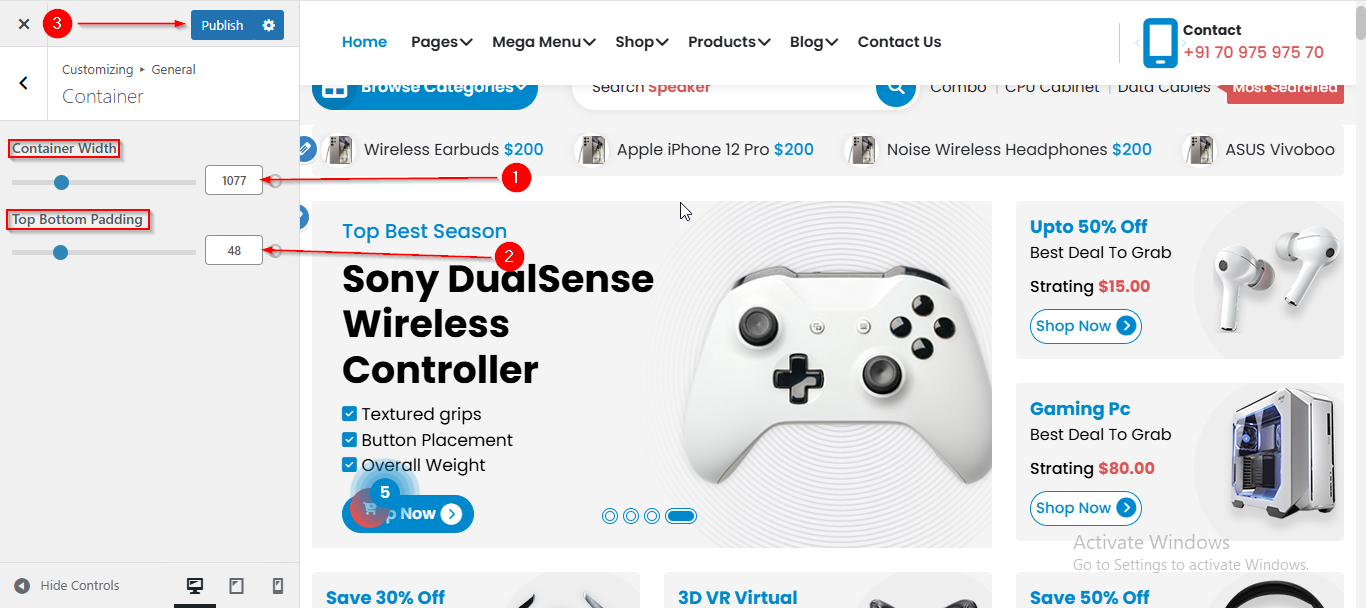
(1) How to manage the Container Width and Top Bottom Padding in General ?
Before proceeding, ensure you're logged into your WordPress Dashboard.
To manage the Container Width and Top Bottom Padding in the General, follow these steps:
- From the WordPress Dashboard, navigate to Appearance > Customize.
- On the Customizer page, go to General > Container.
- Here, you can adjust the Container Width and Top Bottom Padding by using the slider.
- Click Publish when you’re done.
(2) How to manage the Sidebar Layout for different pages in General ?
Before proceeding, ensure you're logged into your WordPress Dashboard.
To manage the Sidebar Layout for different pages in General, follow these steps:
- From the WordPress Dashboard, navigate to Appearance > Customize.
- On the Customizer page, go to General > Sidebar.
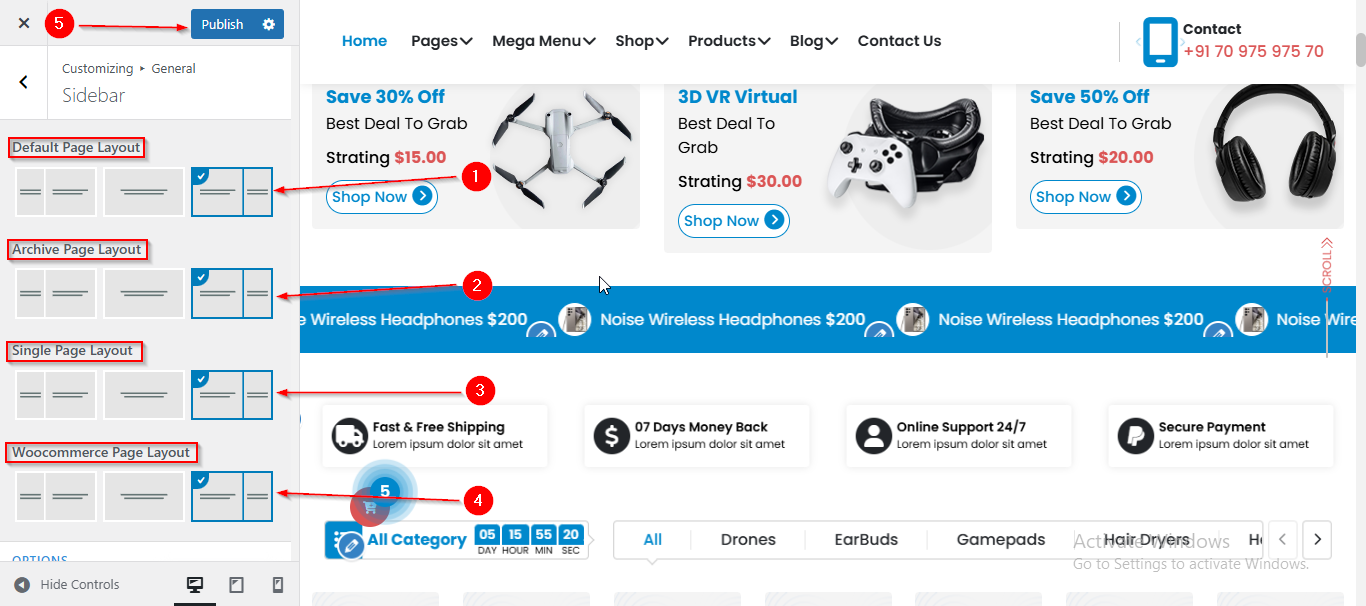
- Here, you can manage Sidebar Layouts for different pages such as Default Page, Archive Page, Single Page, etc .
- Click Publish when you’re done.
(3) How to manage the Sidebar Width and Widget Title Font Size in General ?
Before proceeding, ensure you're logged into your WordPress Dashboard.
To manage the Sidebar Width and Widget Title Font Size in General, follow these steps:
- From the WordPress Dashboard, navigate to Appearance > Customize.
- On the Customizer page, go to General > Sidebar.
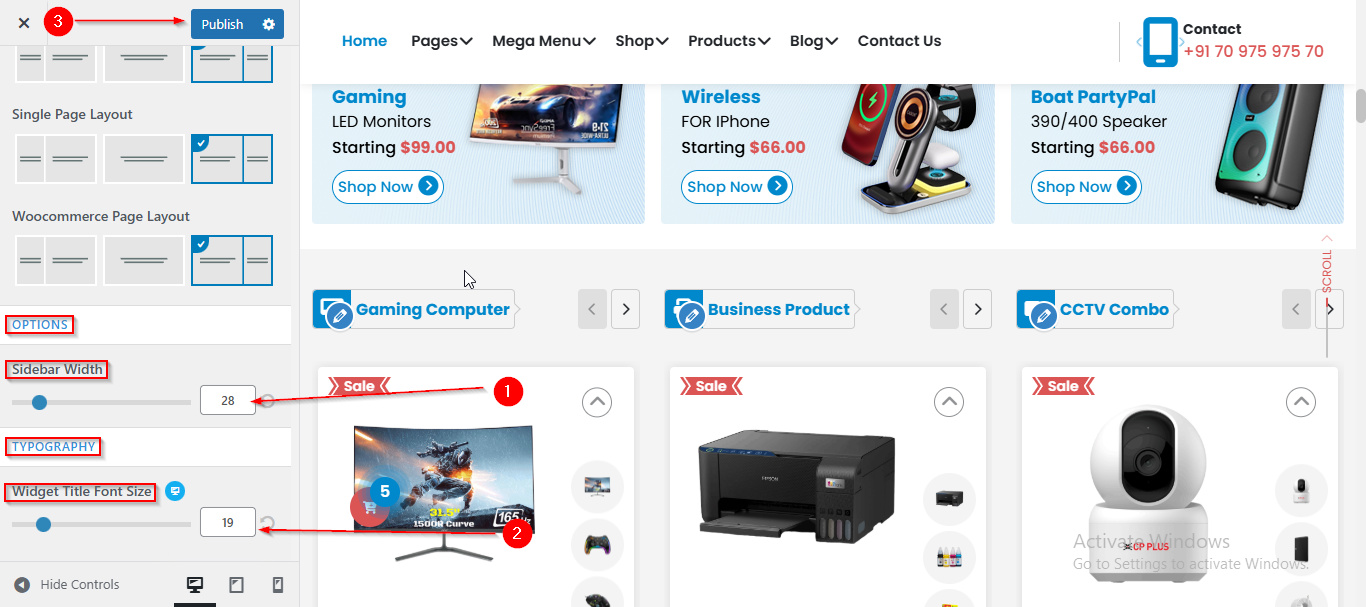
- Here, you have to scroll down till OPTIONS section , from where you can manage the Sidebar Width and Widget Title Font Size.
- Click Publish when you’re done.
(4) How to manage the Top Scoller in General ?
Before proceeding, ensure you're logged into your WordPress Dashboard.
To manage the Top Scoller in General, follow these steps:
- From the WordPress Dashboard, navigate to Appearance > Customize.
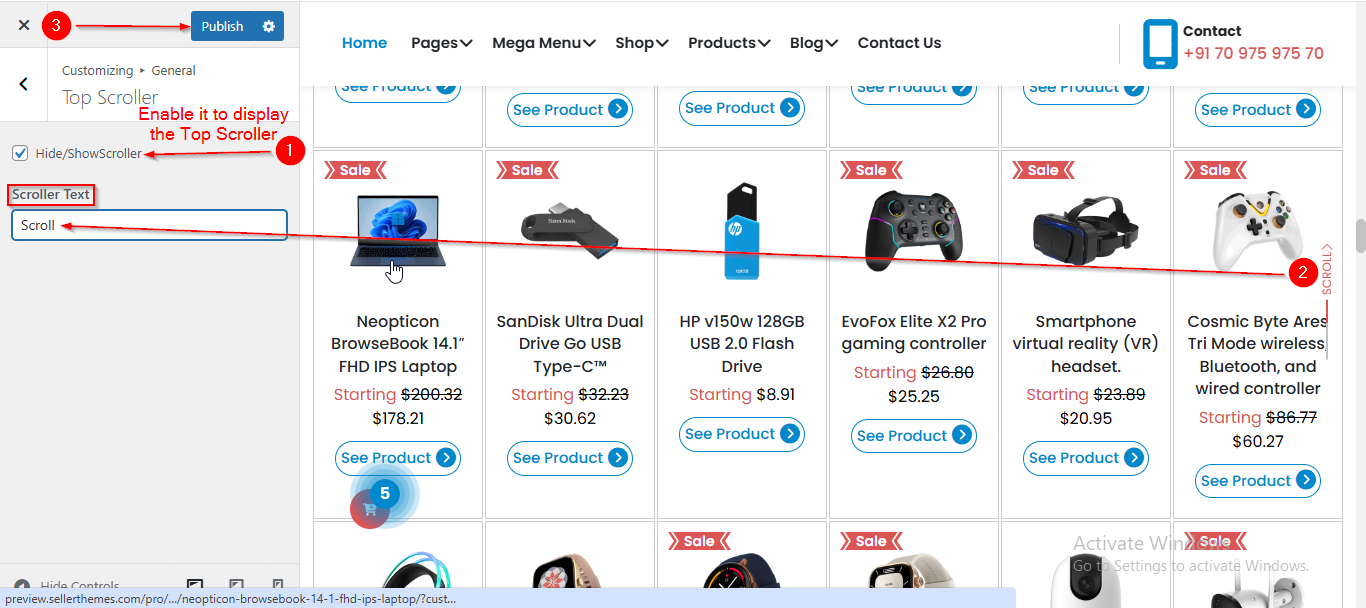
- On the Customizer page, go to General > Top Scroller.
- Here, you can manage the Top Scroller by entering your desired name in Scroller Text field.
- Click Publish when you’re done.
Note : Ensure the checkbox labeled Hide/ShowScroller is checked if you want to display the Top Scoller.
(5) How to manage the Page Breadcrumb in General ?
Before proceeding, ensure you're logged into your WordPress Dashboard.
To manage the Page Breadcrumb in General, follow these steps:
- From the WordPress Dashboard, navigate to Appearance > Customize.
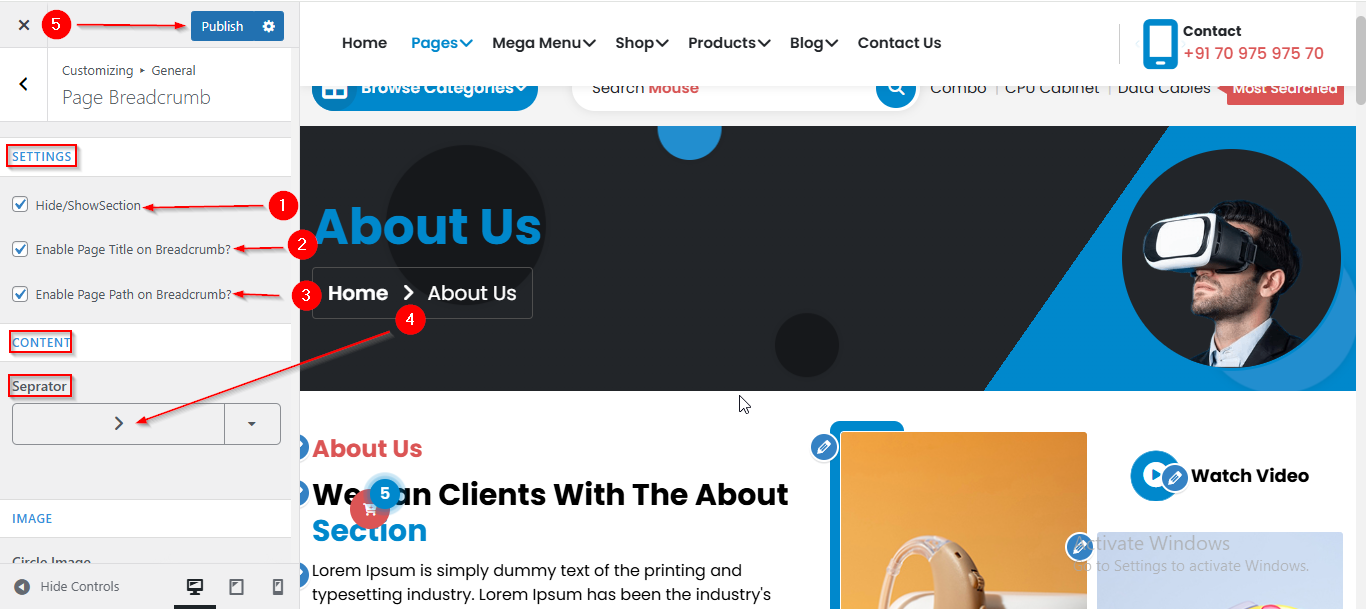
- On the Customizer page, go to General > Page Breadcrumb.
- Here, you can manage all the related settings for the Breadcrumb Section.
- Click Publish when you’re done.
(6) How to manage the Image and Page Breadcrumb Typography in General ?
Before proceeding, ensure you're logged into your WordPress Dashboard.
To manage the Image and Page Breadcrumb Typography in General, follow these steps:
- From the WordPress Dashboard, navigate to Appearance > Customize.
- On the Customizer page, go to General > Page Breadcrumb.
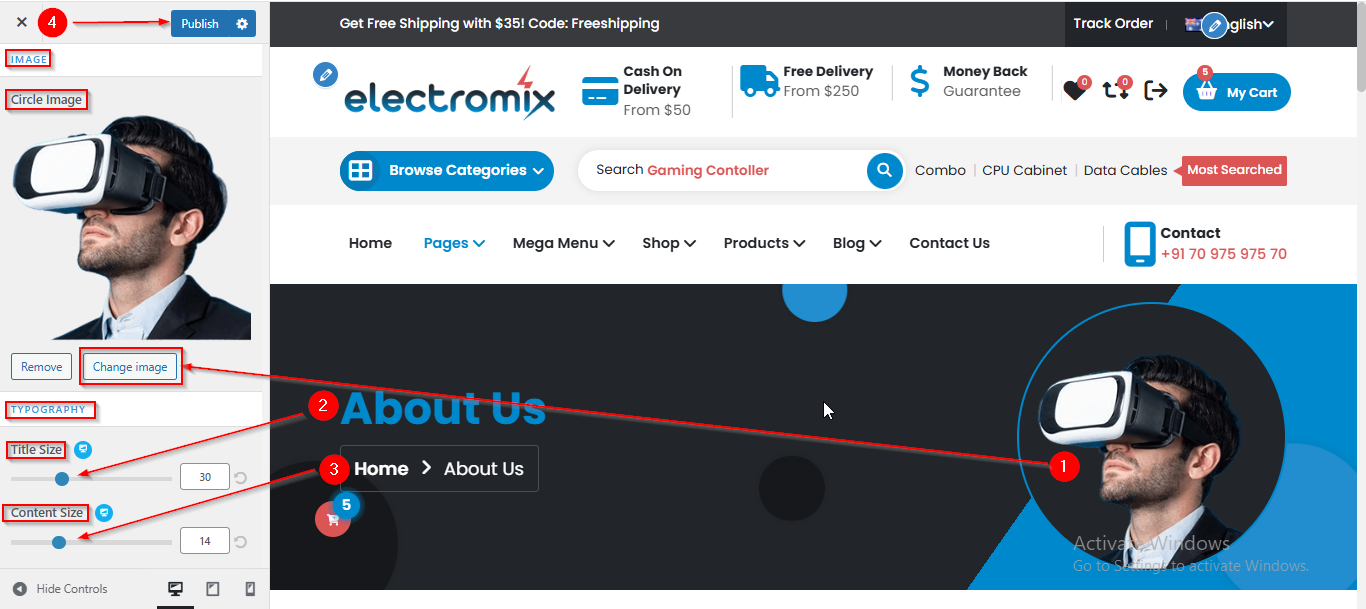
- Here, scroll down till IMAGE section, where you can set the image.
- From TYPOGRAPHY Option you can set the font size.
- Click Publish when you’re done.