Mega Mart Lite Banner Setup
In this article, you’ll learn how to set up and customize the Banner Section of the Mega Mart Lite theme, This guide will help you configure these settings to align with your site’s branding and functionality needs.
(1) How to manage the Banner Header and Main Content in Banner Section ?
Before proceeding, ensure you're logged into your WordPress Dashboard.
To manage the Banner Header and Main Content in the Banner Section , follow these steps:
- From the WordPress Dashboard, navigate to Appearance > Customize.
- On the Customizer page, go to Frontpage Sections > Banner Section.
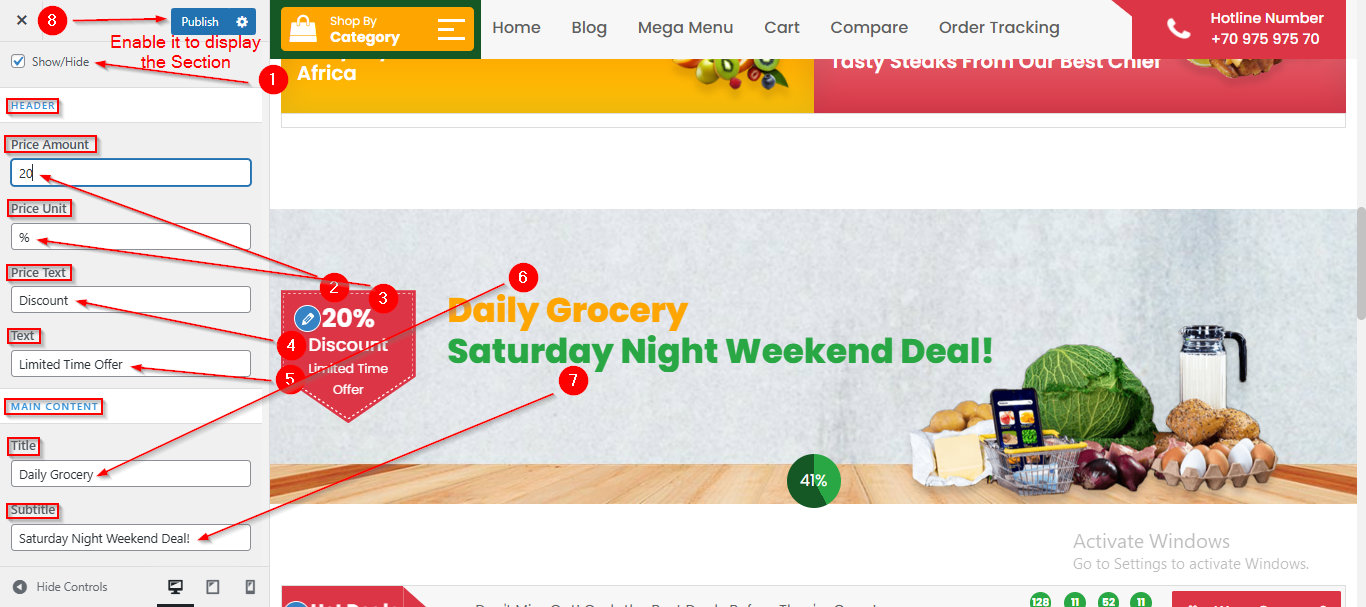
- From the HEADER option , you can manage the Price Amount , Price Unit , Price Text and Text.
- In the MAIN CONTENT, you can manage the Title and Subtitle.
- Click Publish when you're done.
Note : Ensure the checkbox labeled Show/Hide is checked if you want to display the Banner Section.
(2) How to manage the Image and Background Image in Banner Section ?
Before proceeding, ensure you're logged into your WordPress Dashboard.
To manage the Image and Background Image in the Banner Section , follow these steps:
- From the WordPress Dashboard, navigate to Appearance > Customize.
- On the Customizer page, go to Frontpage Sections > Banner Section.
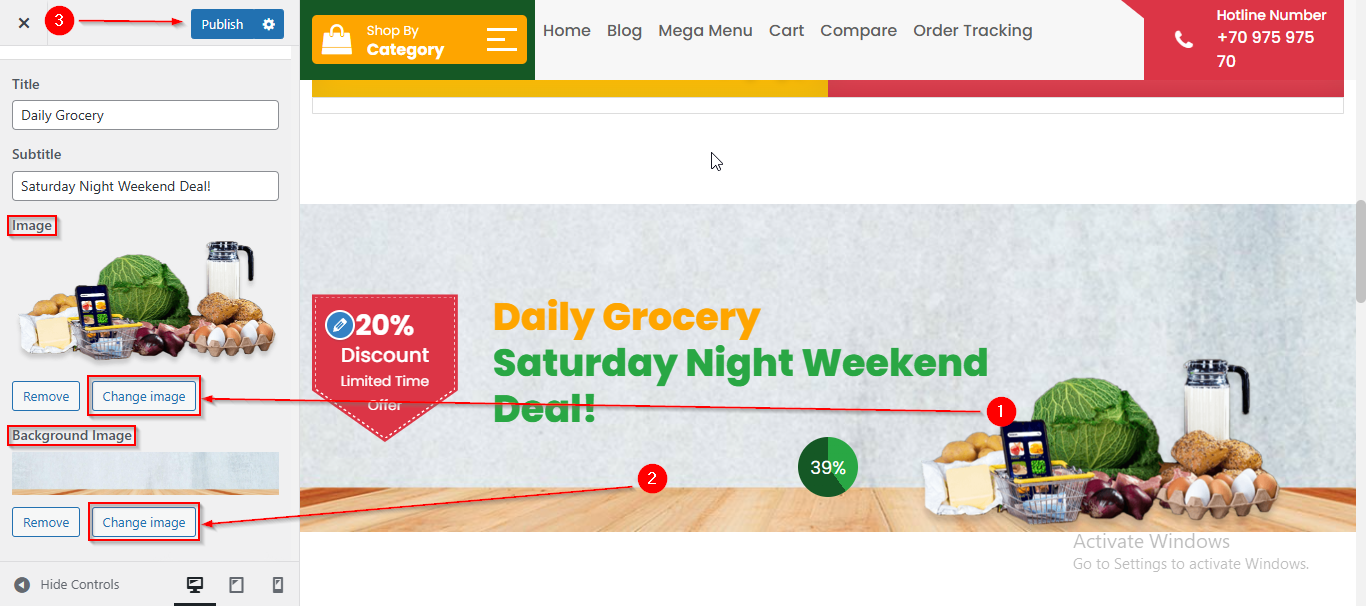
- Scroll down until you see the Image option , you can set the Image here.
- From the Background Image option , you can set the Background Image.
- Click Publish when you're done.