Mega Mart Lite Typography Setup
In this article, you’ll learn how to set up and customize the Typography of the Mega Mart Lite theme, This guide will help you configure these settings to align with your site’s branding and functionality needs.
(1) How to manage the Body Typography in Typography ?
Before proceeding, ensure you're logged into your WordPress Dashboard.
To manage the Body Typography in Typography, follow these steps:
- From the WordPress Dashboard, navigate to Appearance > Customize.
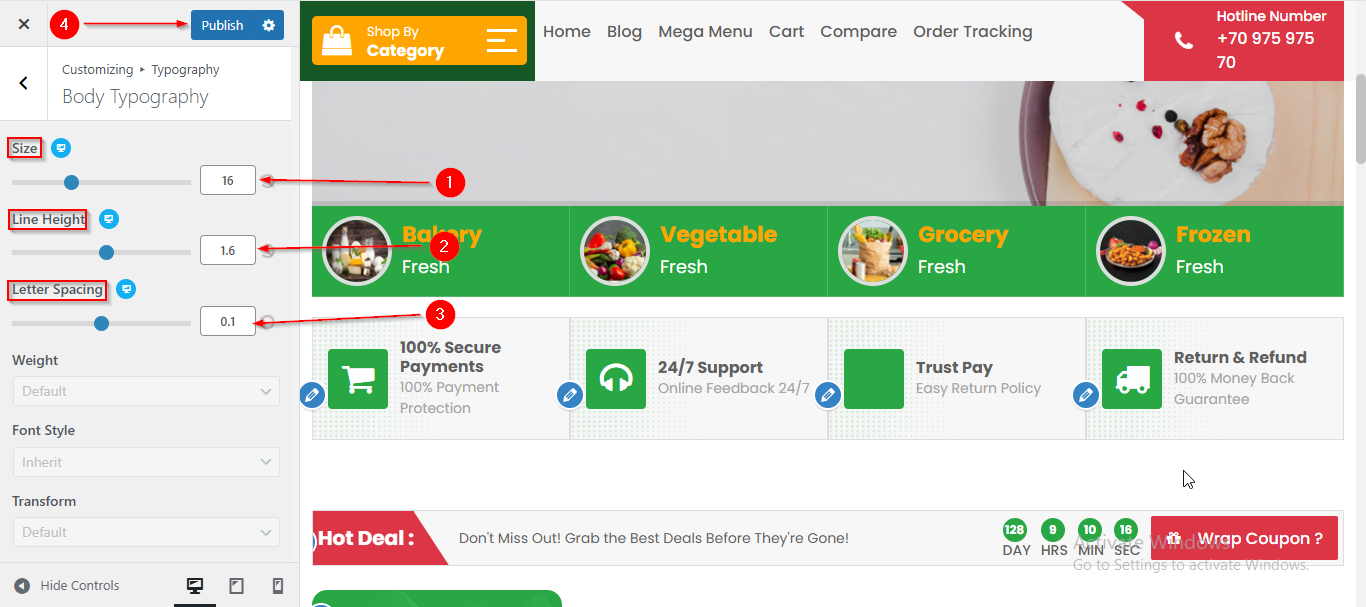
- On the Customizer page, go to Typography > Body Typography.
- Here, you can manage the Body Typography by adjusting various font attributes such as Font Size, Line Height & Letter Spacing.
- Click Publish when you're done.
(2) How to manage the Headings Typography in Typography ?
Before proceeding, ensure you're logged into your WordPress Dashboard.
To manage the Headings Typography in Typography, follow these steps:
- From the WordPress Dashboard, navigate to Appearance > Customize.
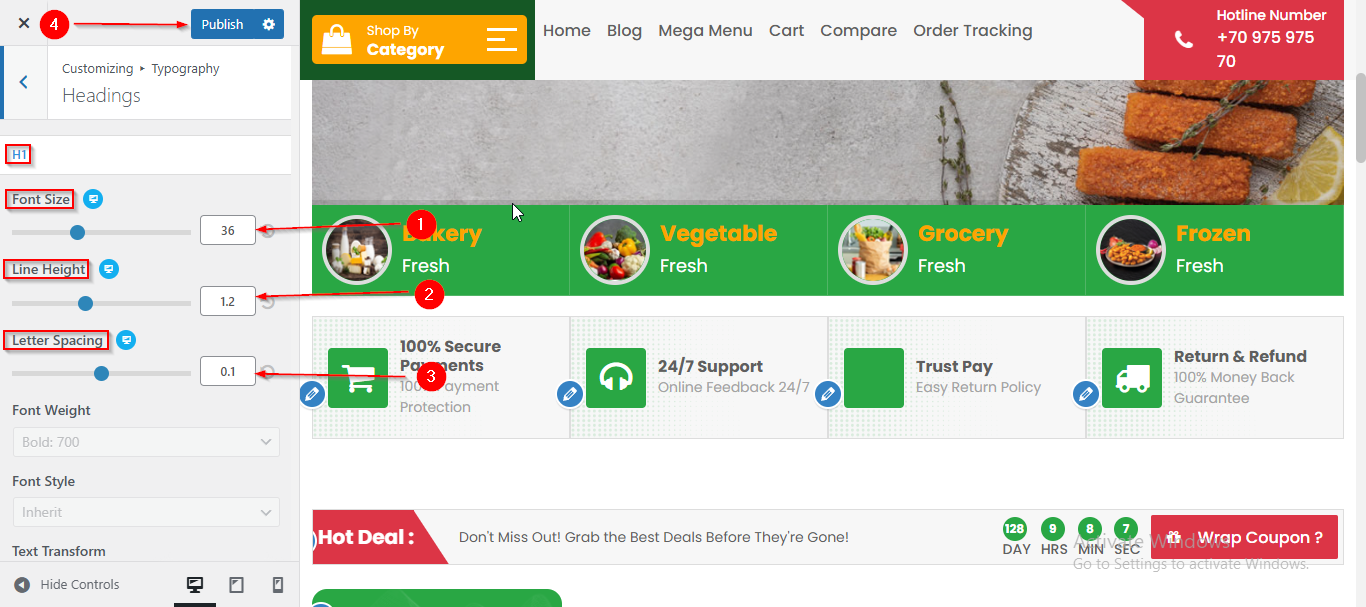
- On the Customizer page, go to Typography > Headings.
- In the H1 section, you can manage headings typography by adjusting various font attributes such as such as Font Size, Line Height & Letter Spacing..
- You can do the same for H2 ,H3, H4 ,H5 & H6 by simply scrolling down.
- Click Publish when you're done.
(3) How to manage the Menu Typography in Typography ?
Before proceeding, ensure you're logged into your WordPress Dashboard.
To manage the Menu Typography in Typography, follow these steps:
- From the WordPress Dashboard, navigate to Appearance > Customize.
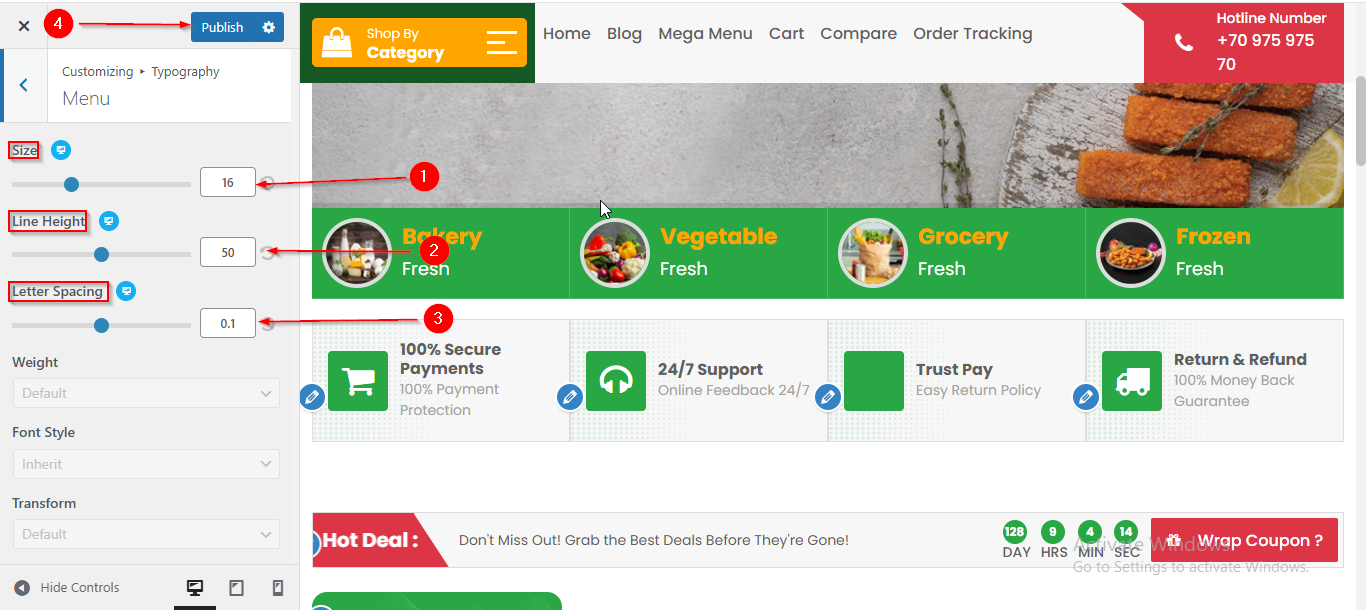
- On the Customizer page, go to Typography > Menu Typography.
- Here, you can manage the Menu Typography by adjusting various font attributes such as Font Size, Line Height & Letter Spacing.
- Click Publish when you're done.