Mega Mart Lite Header Setup
In this article, you’ll learn how to set up and customize the Header Section of the Mega Mart Lite theme, This guide will help you configure these settings to align with your site’s branding and functionality needs.
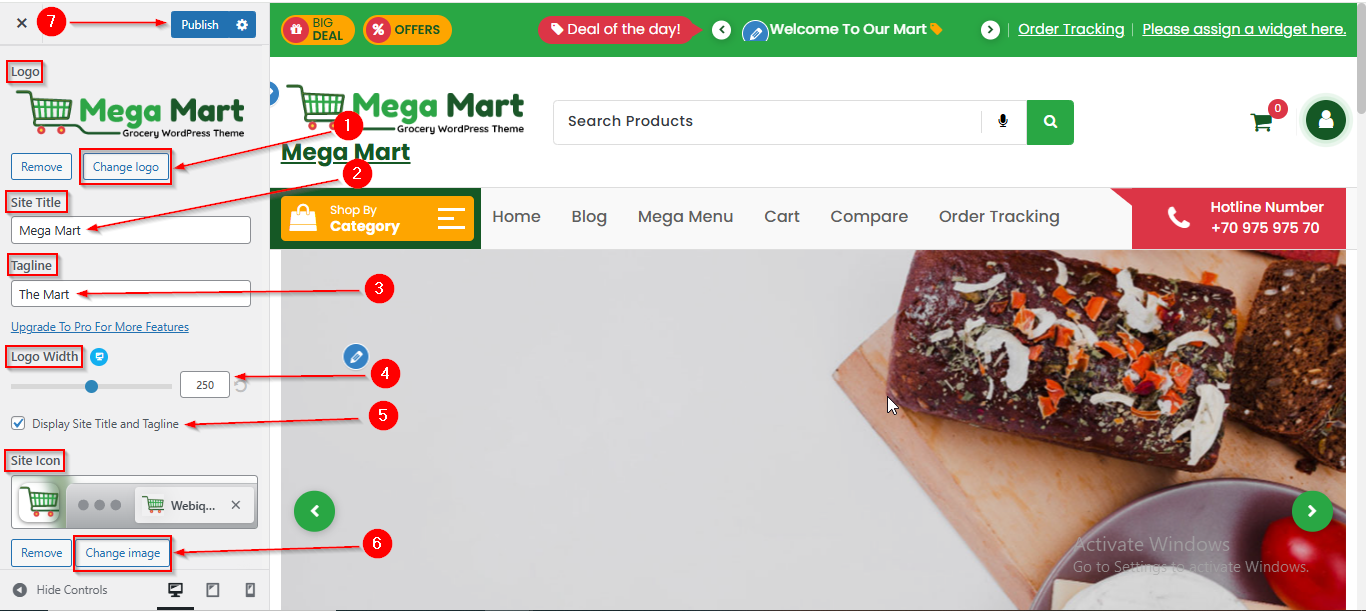
(1) How to manage the Logo, Site Title , Tagline , Logo width and Site Icon in Header Section ?
Before proceeding, ensure you're logged into your WordPress Dashboard.
To manage the Logo, Site Title, Tagline , Logo Width and Site Icon in the Header Section, follow these steps:
- From the WordPress Dashboard, navigate to Appearance > Customize.
- On the Customizer page, go to Header > Site Identity.
- Here, you can manage the Logo, Site Title , Tagline Logo Width and Site Icon.
- Click Publish when you’re done.
Note : Ensure the checkbox labeled Display Site Title and Tagline is checked if you want to display the Site Title and Tagline.
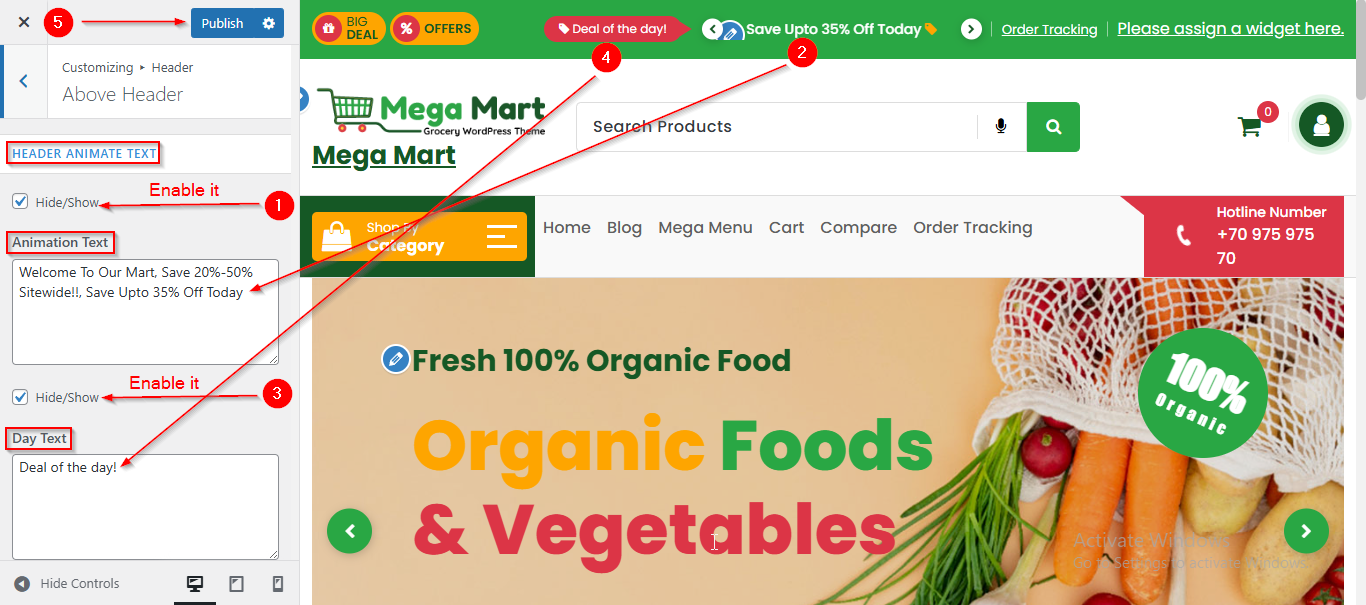
(2) How to manage the Header Animate Slider and Deal Text in Above Header ?
Before proceeding, ensure you're logged into your WordPress Dashboard.
To manage the Header Animate Slider and Deal Text in Above Header, follow these steps:
- From the WordPress Dashboard, navigate to Appearance > Customize.
- On the Customizer page, go to Header > Above Header.
- In the Animation Text field, you can create your Header Animate Slider by separating each sentence or word with a comma.
- From the Day Text feild , you can enter the Deal Text.
- Click Publish when you’re done.
Note : Ensure the checkbox labeled Hide/Show is checked if you want to display Text.
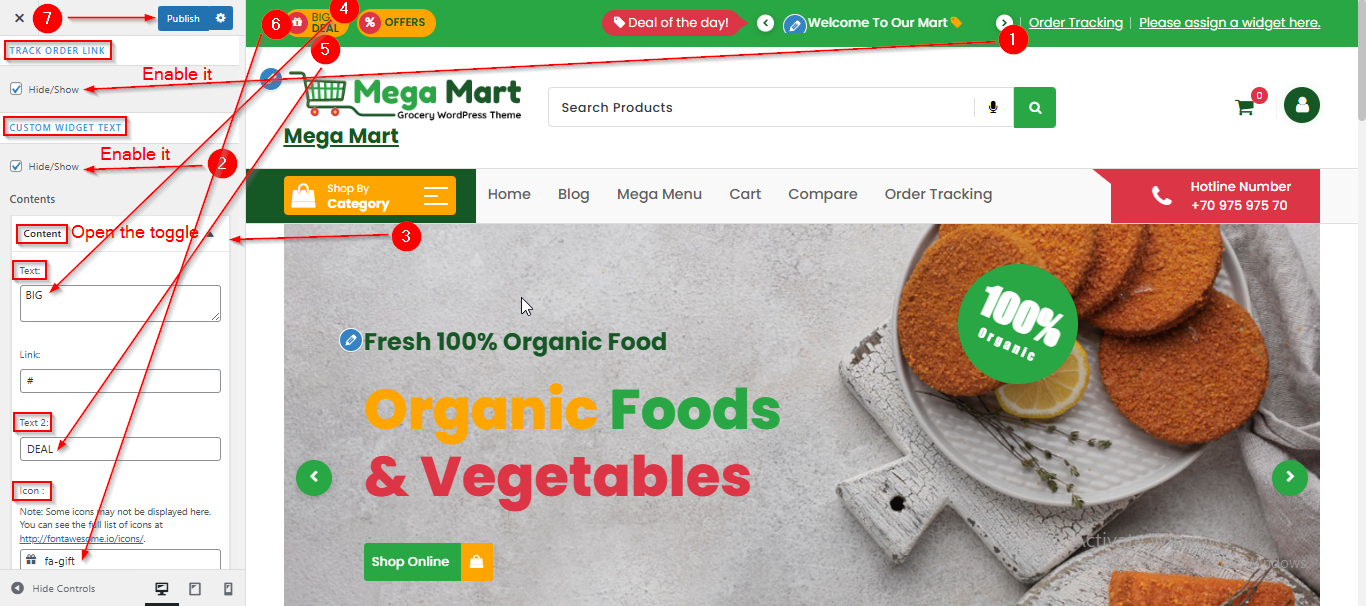
(3) How to manage the Track Order and Left Content in Above Header ?
Before proceeding, ensure you're logged into your WordPress Dashboard.
To manage the Track Order and Left Content in Above Header, follow these steps:
- From the WordPress Dashboard, navigate to Appearance > Customize.
- On the Customizer page, go to Header > Above Header.
- Scroll down until you see the TRACK ORDER LINK.
- Enable the Hide/Show checkbox to display the Tracker.
- Open the Content toggle to manage the Left Content such as Text , Text 2 and Icon.
- Click Publish when you’re done.
Note : Ensure the checkbox labeled Hide/Show is checked if you want to display Text.
(4) How to manage the Navigation Icon and Contact Button in Header Navigation ?
Before proceeding, ensure you're logged into your WordPress Dashboard.
To manage the Navigation Icon and Contact Button in the Header Navigation, follow these steps:
- From the WordPress Dashboard, navigate to Appearance > Customize.
- On the Customizer page, go to Header > Header Navigation.
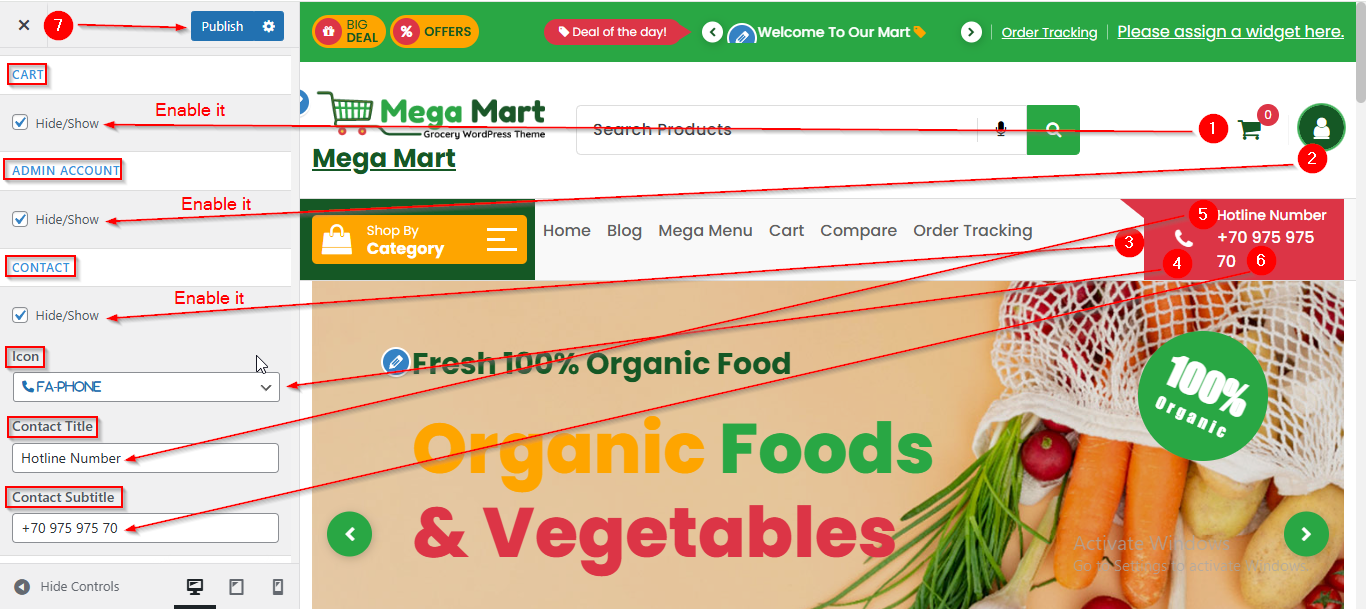
- Here, you will find the Hide/Show checkboxes for each navigation icon.
- You can manage whether to display specific navigation icons by enabling or disabling the Hide/Show checkbox.
- From the CONTACT Section , enable the Hide/Show checkbox to display the Button.
- You can manage the Contact Button content such as Icon , Contact Title and Contact Subtitle.
- Click Publish when you're done.
(5) How to manage the Social Icon and Product Search in the Header Navigation ?
Before proceeding, ensure you're logged into your WordPress Dashboard.
To manage the Social Icon and Product Search in the Header Navigation, follow these steps:
- From the WordPress Dashboard, navigate to Appearance > Customize.
- On the Customizer page, go to Header > Header Navigation.
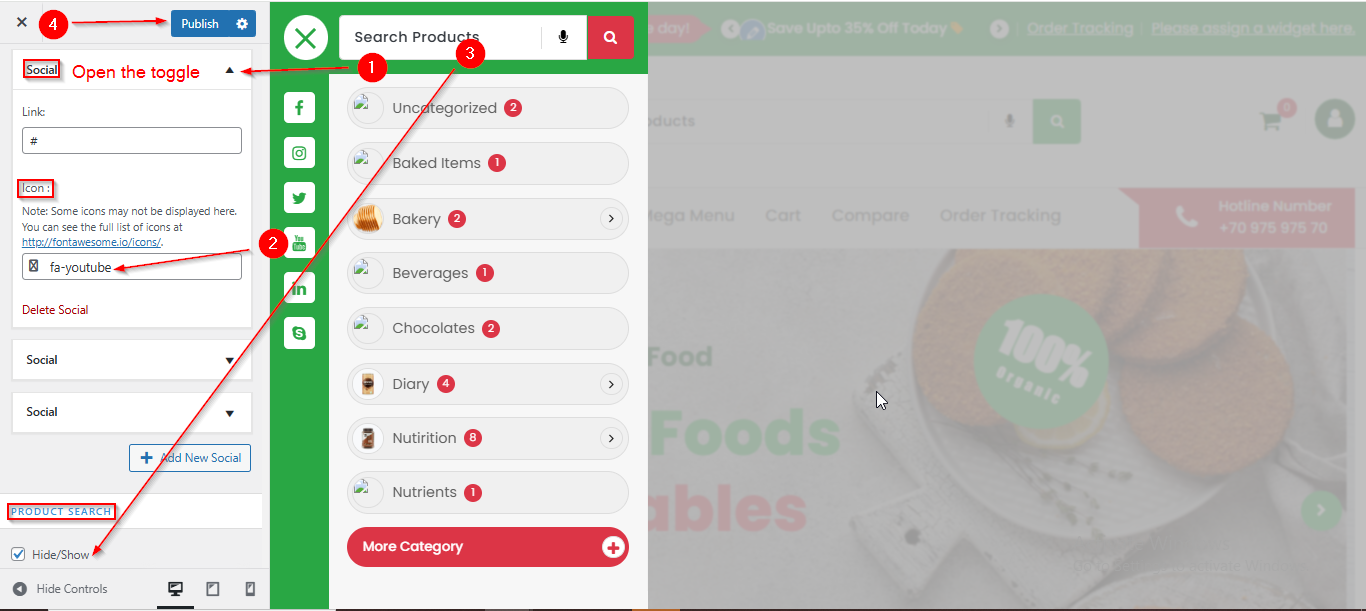
- Scroll down until you see the Social toggle.
- Open the Social toggle to manage the Social Icon.
- Enable the Hide/Show checkbox from the PRODUCT SEARCH to display the Search Bar.
- Click Publish when you're done.
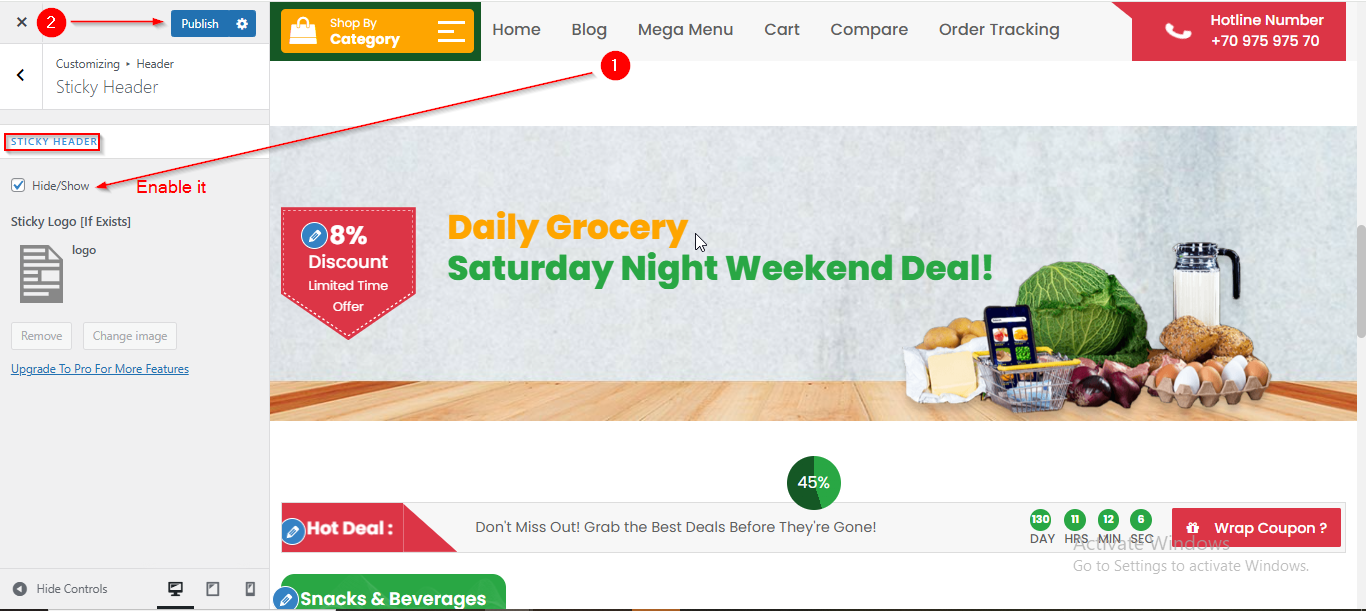
(6) How to manage the Sticky Header in Header Section ?
Before proceeding, ensure you're logged into your WordPress Dashboard.
To manage the Sticky Header in the Header Section, follow these steps:
- From the WordPress Dashboard, navigate to Appearance > Customize.
- On the Customizer page, go to Header > Sticky Header.
- Here, you can manage the Sticky Header by enabling or disabling the Hide/Show checkbox.
- Click Publish when you're done.