Mega Mart Pro Testimonial Setup
In this article, you’ll learn how to set up and customize the Testimonial Section of the Mega Mart Pro theme, This guide will help you configure these settings to align with your site’s branding and functionality needs.
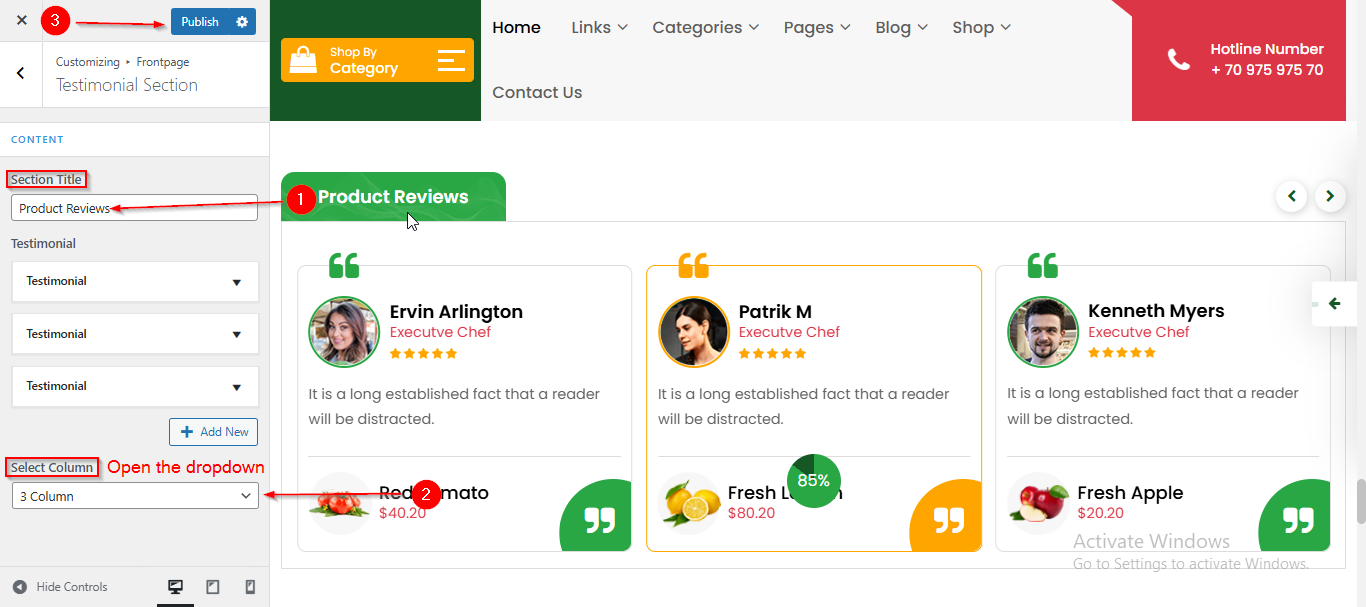
(1) How to manage the Testimonial Title and Select Column in Testimonial Section ?
Before proceeding, ensure you're logged into your WordPress Dashboard.
To manage the Testimonial Title and Select Column in Testimonial Section, follow these steps:
- From the WordPress Dashboard, navigate to Appearance > Customize.
- On the Customizer page, go to Frontpage > Testimonial Section.
- Once you have reached here you can manage the Section Title.
- From the Select Column dropdown you can manage the Columns.
- Click Publish when you're done.
(2) How to manage the Testimonial Content in Testimonial Section ?
Before proceeding, ensure you're logged into your WordPress Dashboard.
To manage the Testimonial Content in Testimonial Section, follow these steps:
1. From the WordPress Dashboard, navigate to Appearance > Customize.
2. On the Customizer page, go to Frontpage > Testimonial Section.
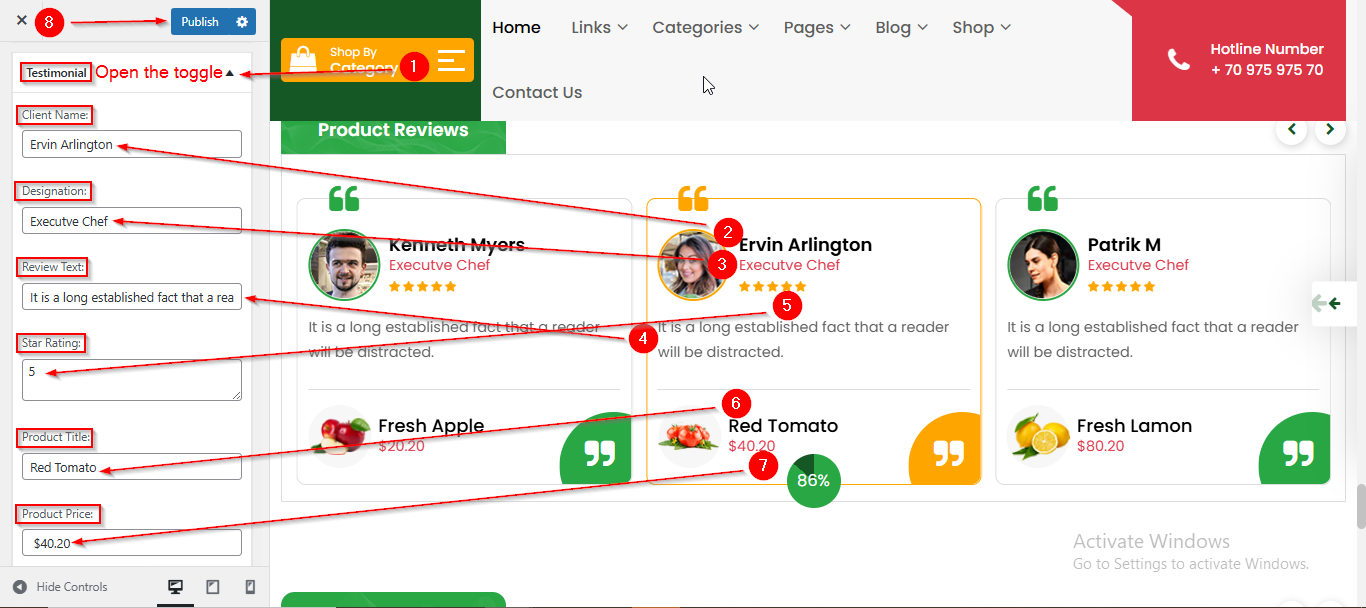
3. Open the Testimonial Toggle to manage the content such as Client Name , Designation , Review Text , Star Rating , Product Title and Product Price.
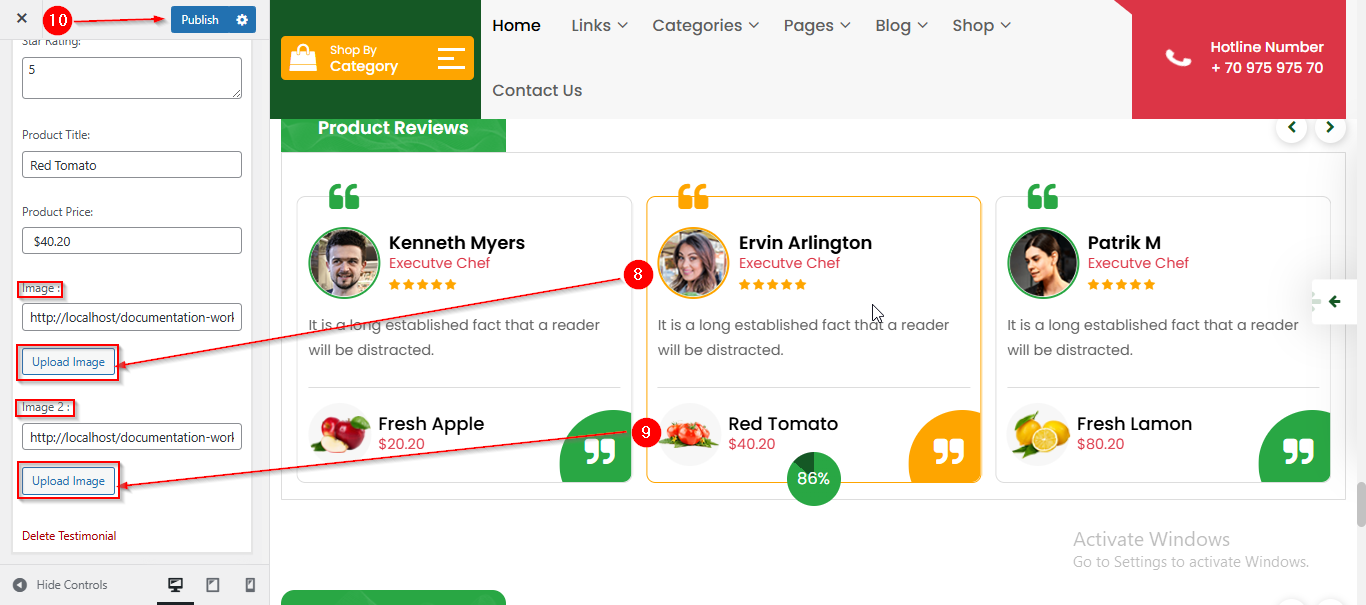
4. You can also manage the Testimonial Images.
5. Click Publish when you're done.