Mega Mart Pro Style Configurator Setup
In this article, you’ll learn how to set up and customize the Style Configurator of the Mega Mart Pro theme, This guide will help you configure these settings to align with your site’s branding and functionality needs.
(1) How to manage the Theme Color in Style Configurator ?
Before proceeding, ensure you're logged into your WordPress Dashboard.
To manage the Theme Color in Style Configurator, follow these steps:
- From the WordPress Dashboard, navigate to Appearance > Customize.
- On the Customizer page, go to Style Configurator > Theme Color.
- Here, select the Color Type: either Prebuilt Color or Custom Color.
- Prebuilt Color: Choose from pre-made color schemes for the theme.
- Custom Color: Create your own color scheme by selecting the Primary and Secondary colors.
- Click Publish when you're done.

(2) How to manage the Front Pallate in Style Configurator ?
Before proceeding, ensure you're logged into your WordPress Dashboard.
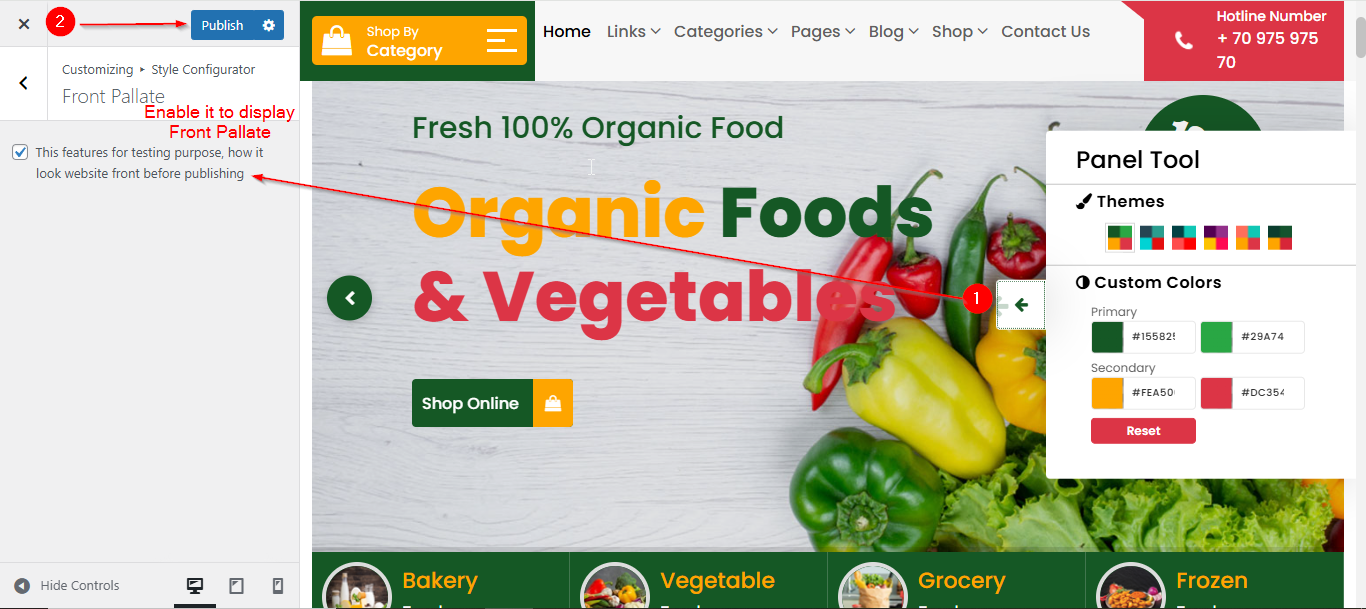
To manage the Front Pallate in Style Configurator, follow these steps:
- From the WordPress Dashboard, navigate to Appearance > Customize.
- On the Customizer page, go to Style Configurator > Front Pallate.
- Here, you can choose whether to display the Front Palette or not by enabling the checkbox.
- Click Publish when you're done.