Mega Mart Pro General Setup
In this article, you’ll learn how to set up and customize the general components of the Mega Mart Pro theme, such as the Container , Sidebar, Top Scroller , Page Breadcrumb & Newsletter. This guide will help you configure these settings to align with your site’s branding and functionality needs.
(1) How to manage the Preloader in General ?
Before proceeding, ensure you're logged into your WordPress Dashboard.
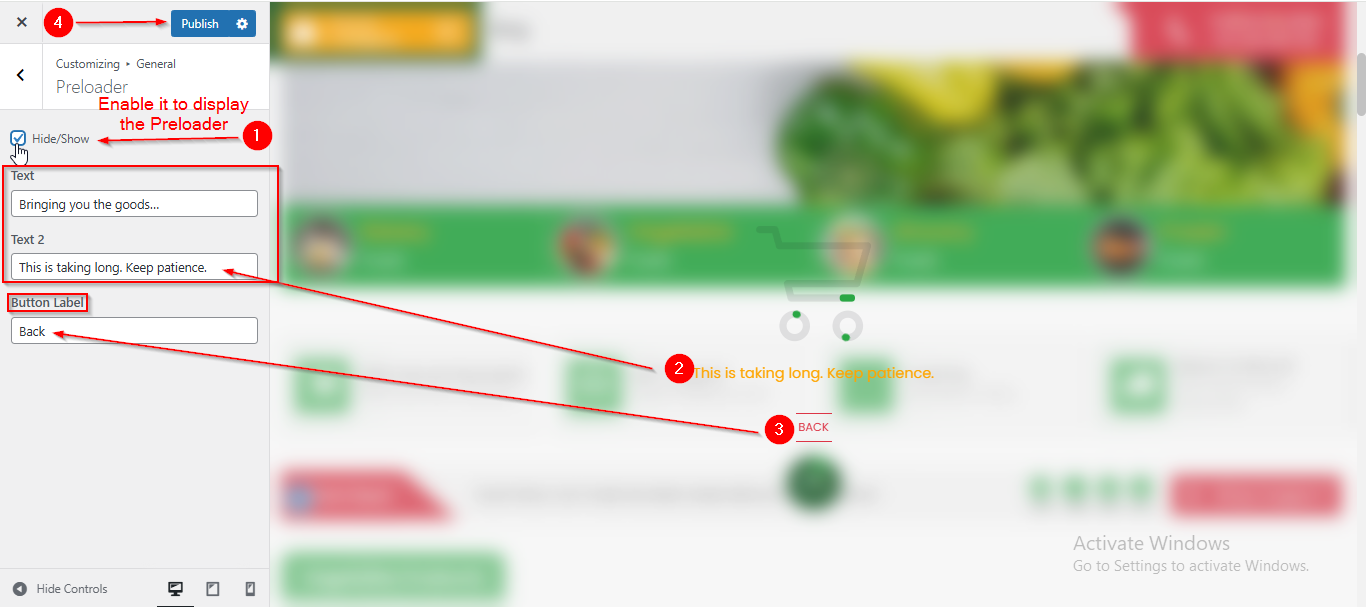
To manage the Preloader in General, follow these steps:
- From the WordPress Dashboard, navigate to Appearance > Customize.
- On the Customizer page, go to General > Preloader.
- Check the Hide/Show option to enable or disable the Preloader.
- Enter your preferred text and button label.
- Click Publish when you're done.
(2) How to manage the Container in General ?
Before proceeding, ensure you're logged into your WordPress Dashboard.
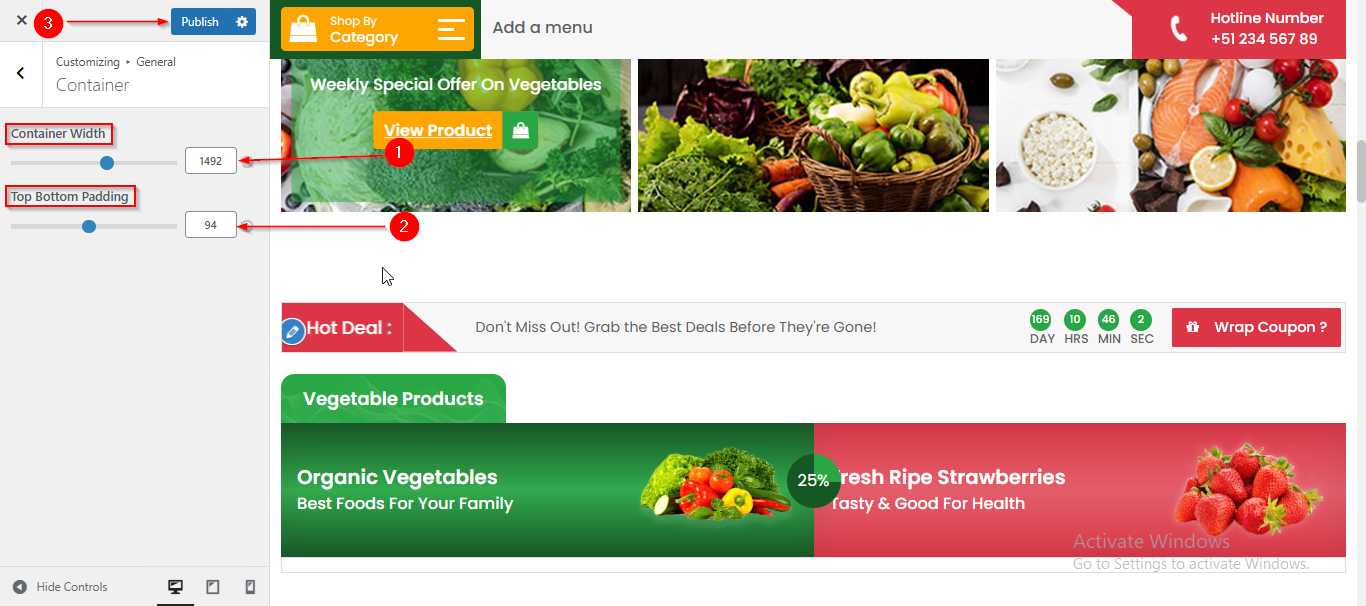
To manage the Container in General, follow these steps:
- From the WordPress Dashboard, navigate to Appearance > Customize.
- On the Customizer page, go to General > Container.
- Here, you can adjust the Container Width and the Top & Bottom Padding of the container.
- Click Publish when you're done.
(3) How to manage the Sidebar Layout for different pages in General ?
Before proceeding, ensure you're logged into your WordPress Dashboard.
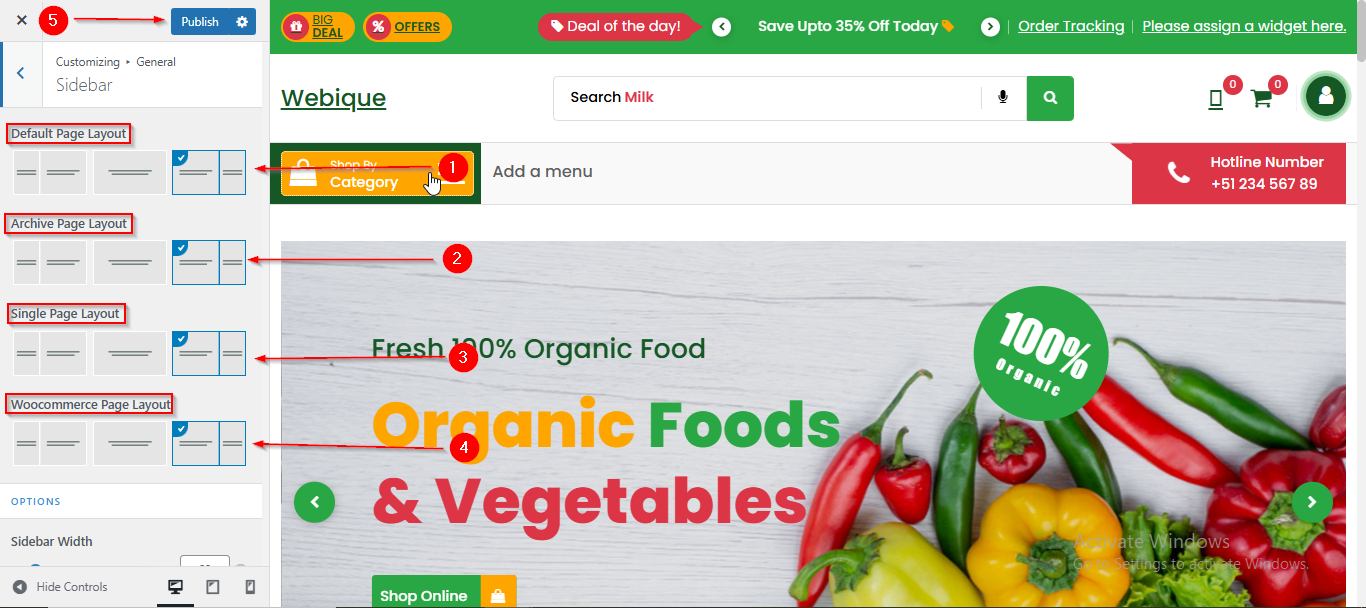
To manage the Sidebar Layout for different pages in General, follow these steps:
- From the WordPress Dashboard, navigate to Appearance > Customize.
- On the Customizer page, go to General > Sidebar.
- Here, you can manage Sidebar Layouts for different pages such as Default Page, Archive Page, Single Page, etc .
- Click Publish when you’re done.
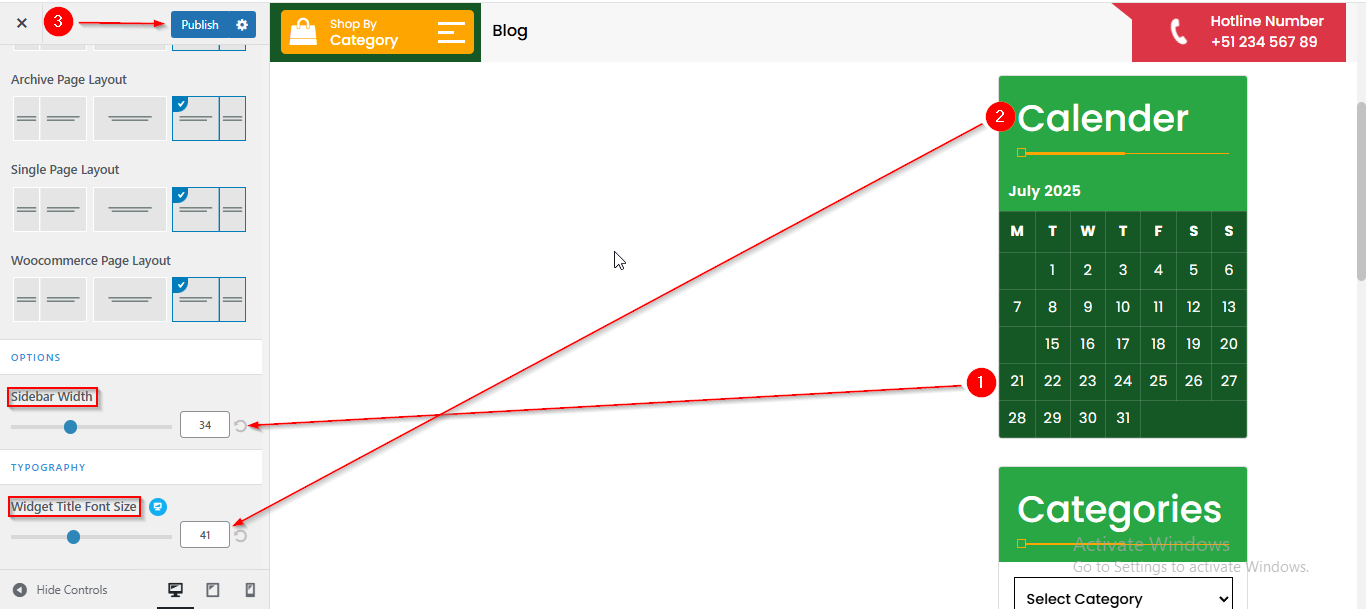
(4) How to manage the Sidebar Width and Font Size in General ?
Before proceeding, ensure you're logged into your WordPress Dashboard.
To manage the Sidebar Width and Font Size in General, follow these steps:
- From the WordPress Dashboard, navigate to Appearance > Customize.
- On the Customizer page, go to General > Sidebar.
- Scroll down until you see the OPTIONS section.
- Here, you can adjust the Sidebar Width and Font Size as needed.
- Click Publish when you’re done.
(5) How to manage the Top Scroller in General ?
Before proceeding, ensure you're logged into your WordPress Dashboard.
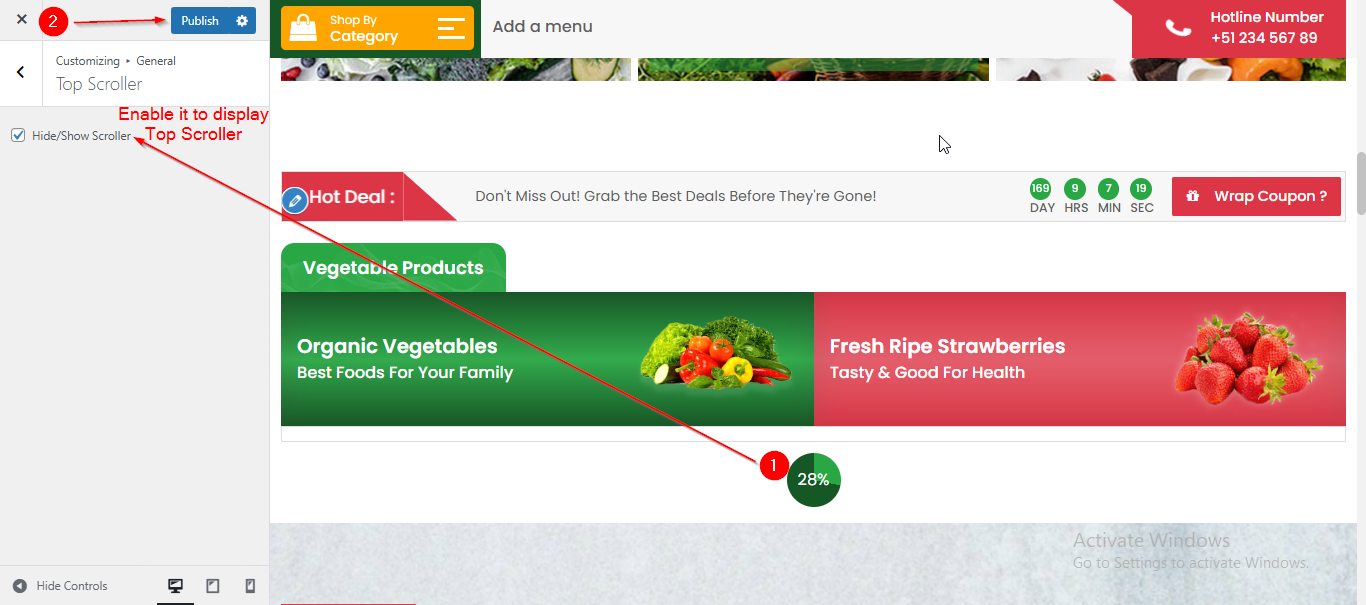
To manage the Top Scroller in General, follow these steps:
- From the WordPress Dashboard, navigate to Appearance > Customize.
- On the Customizer page, go to General > Top Scroller.
- Here, you can enable or disable the Top Scroller using the checkbox.
- Click Publish when you're done.
(6) How to manage the Page Breadcrumb in General ?
Before proceeding, ensure you're logged into your WordPress Dashboard.
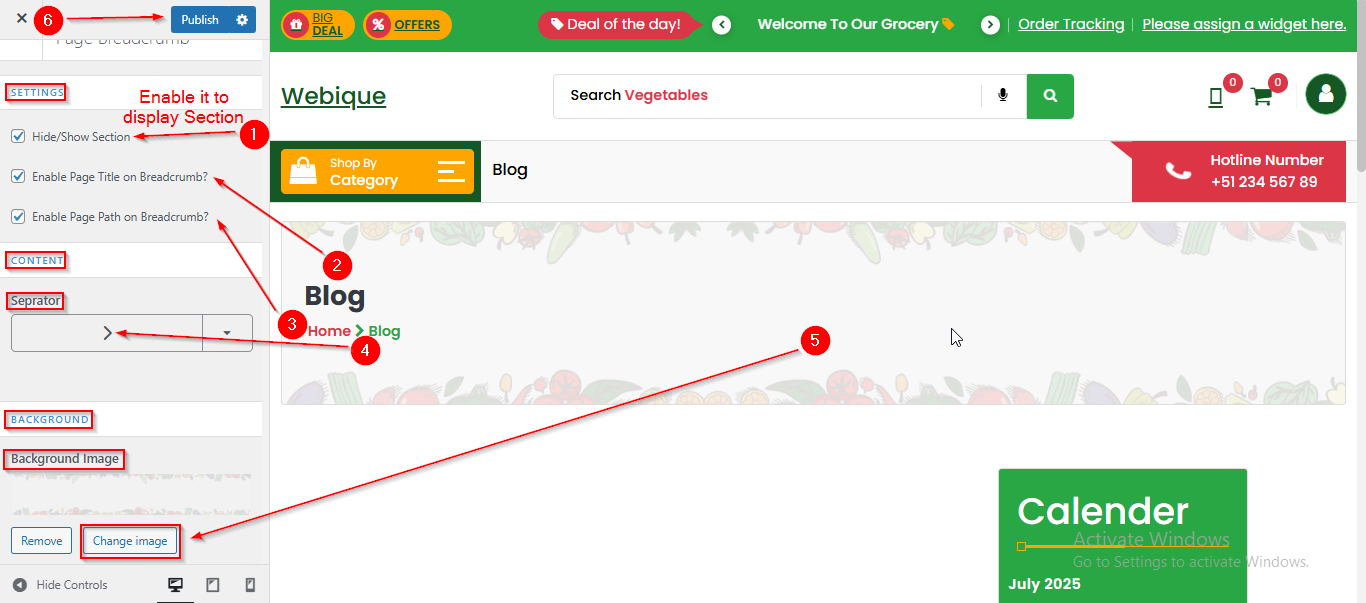
To manage the Page Breadcrumb in General, follow these steps:
- From the WordPress Dashboard, navigate to Appearance > Customize.
- On the Customizer page, go to General > Page Breadcrumb.
- Here, you can manage all the related settings for the Breadcrumb Section.
- Click Publish when you're done.
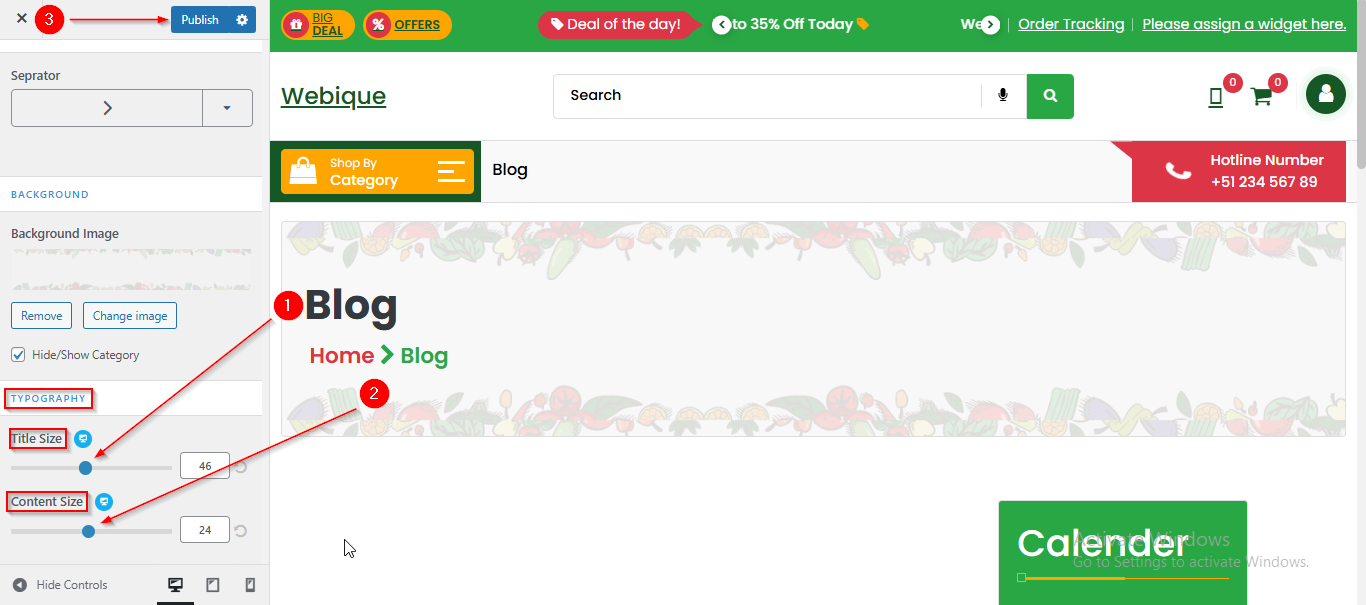
(7) How to manage the Page Breadcrumb Typography in General ?
Before proceeding, ensure you're logged into your WordPress Dashboard.
To manage the Page Breadcrumb Typography in General, follow these steps:
- From the WordPress Dashboard, navigate to Appearance > Customize.
- On the Customizer page, go to General > Page Breadcrumb.
- Here, scroll down till TYPOGRAPHY section, where you can adjust the Page Breadcrumb Typography settings.
- Click Publish when you're done.