Mega Mart Pro Header Setup
In this article, you’ll learn how to set up and customize the Header Section of the Mega Mart Pro theme, This guide will help you configure these settings to align with your site’s branding and functionality needs.
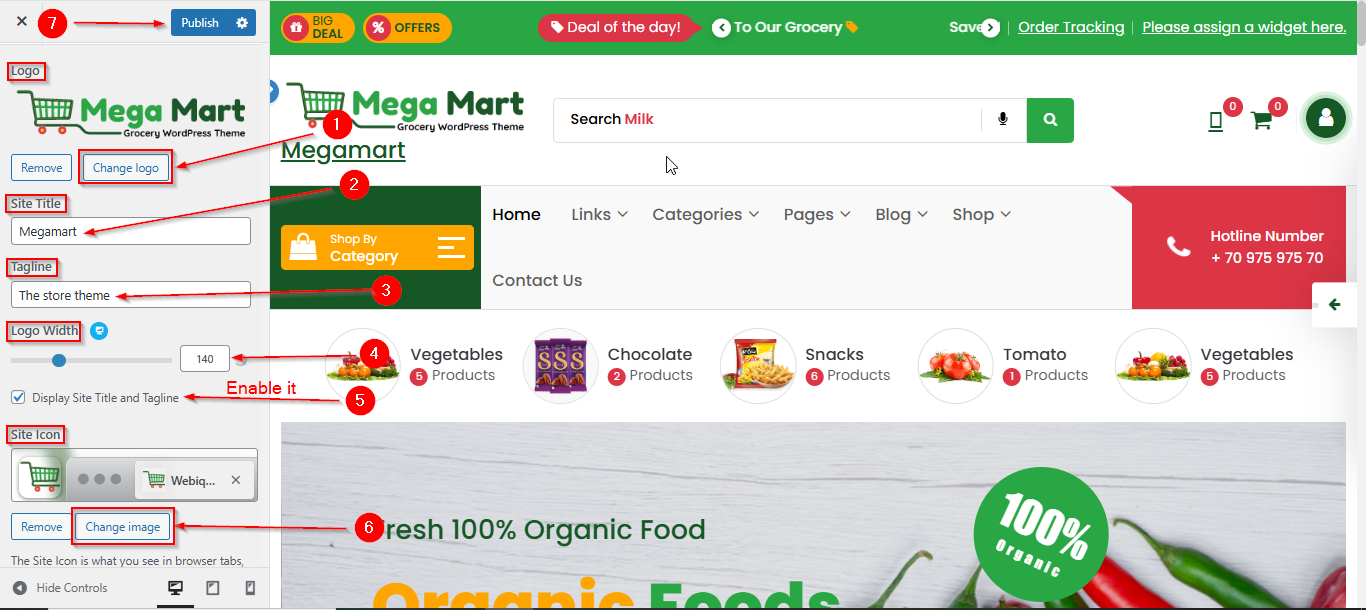
(1) How to manage the Logo, Site Title , Tagline , Logo width and Site Icon in the Header Section ?
Before proceeding, ensure you're logged into your WordPress Dashboard.
To manage the Logo, Site Title, Tagline , Logo Width and Site Icon in the Header Section, follow these steps:
- From the WordPress Dashboard, navigate to Appearance > Customize.
- On the Customizer page, go to Header > Site Identity.
- Here, you can manage the Logo, Site Title , Tagline , Logo Width and Site Icon.
- Click Publish when you’re done.
Note : Ensure the checkbox labeled Display Site Title and Tagline is checked if you want to display the Site Title and Tagline.
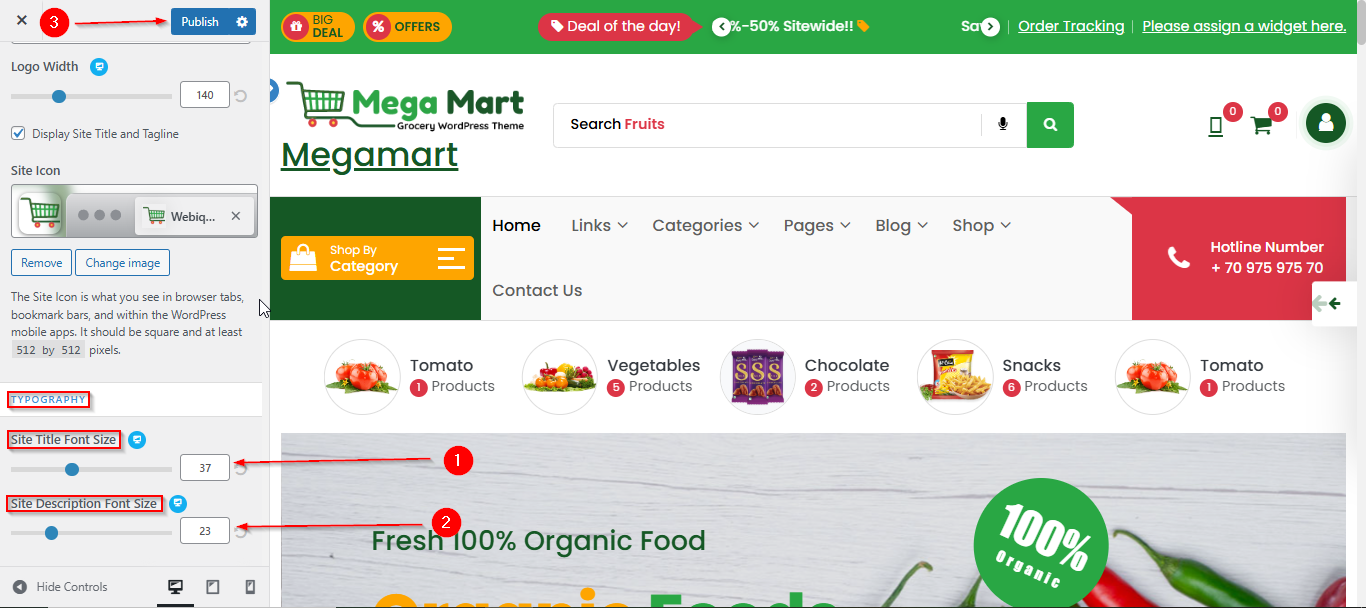
(2) How to manage the Site Title and Description Font Size in the Header Section ?
Before proceeding, ensure you're logged into your WordPress Dashboard.
To manage the Site Title, and Site Description Font size in the Header Section, follow these steps:
- From the WordPress Dashboard, navigate to Appearance > Customize.
- On the Customizer page, go to Header > Site Identity.
- For the Site Title and Description, scroll to the TYPOGRAPHY section below the Site Icon, where you can adjust the Font Size.
- Click Publish when you're done.
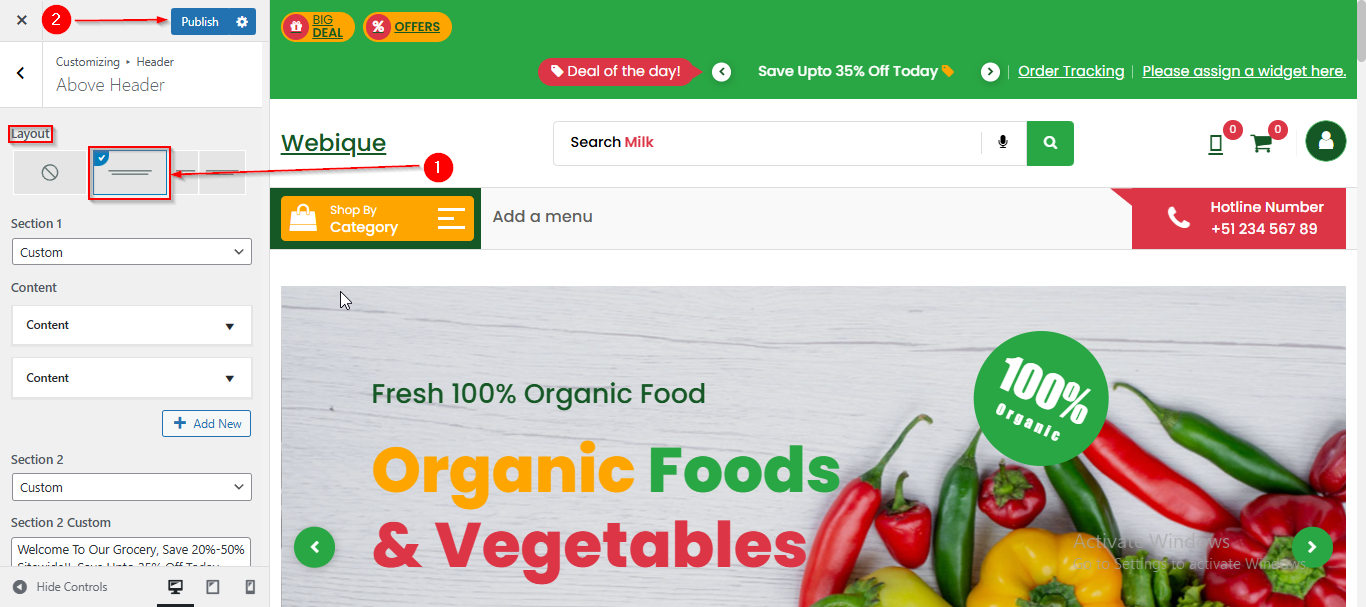
(3) How to manage the Above Header Layout in Header Section ?
Before proceeding, ensure you're logged into your WordPress Dashboard.
To manage the Above Header Layout in the Header Section, follow these steps:
- From the WordPress Dashboard, navigate to Appearance > Customize.
- On the Customizer page, go to Header > Above Header.
- From here, you can choose the layout for your Above Header.
- Click Publish when you're done.
(4) How to manage the Section 1 Content Above Header in the Header Section ?
Before proceeding, ensure you're logged into your WordPress Dashboard.
To manage the Section 1 Content Above Header in the Header Section, follow these steps:
- From the WordPress Dashboard, navigate to Appearance > Customize.
- On the Customizer page, go to Header > Above Header.
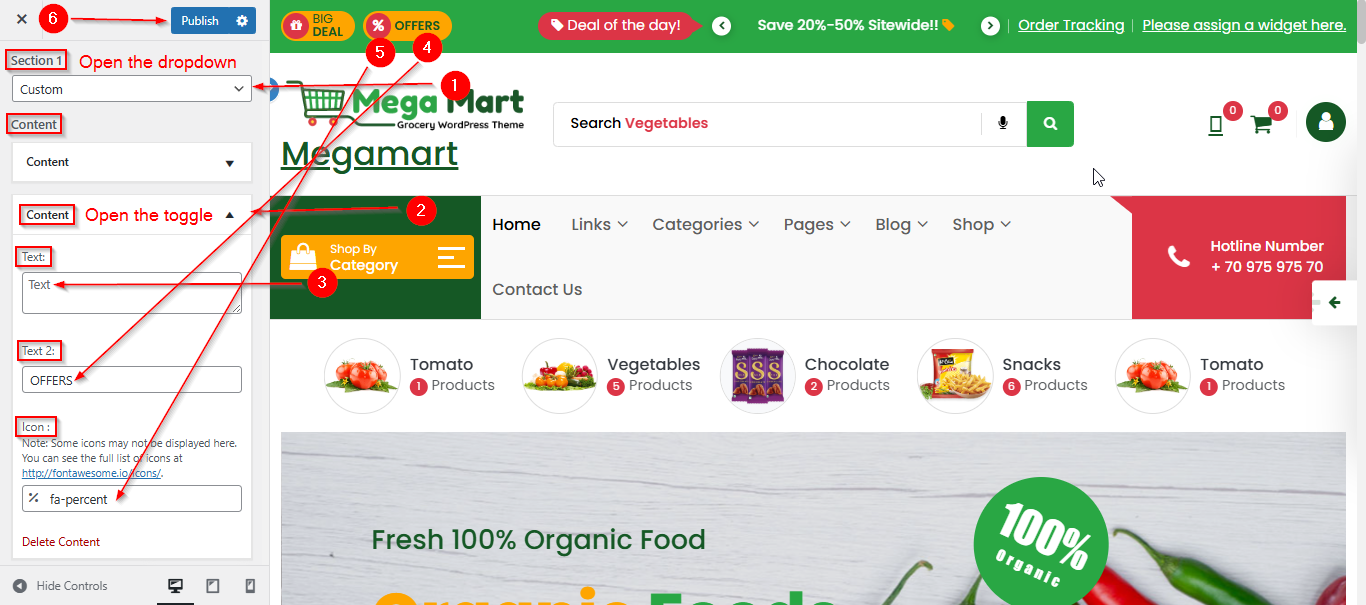
- From the Section 1 dropdown, select Custom.
- Then, open the Content toggle to add your Section 1 content, such as Text, Text 2, and Icon.
- Click Publish when you're done.
Note : If you choose Widget from the Section 1 dropdown instead, you can add any widget of your choice in that area.
(5) How to manage the Section 2 Content Above Header in Header Section ?
Before proceeding, ensure you're logged into your WordPress Dashboard.
To manage the Section 2 Content Above Header in the Header Section, follow these steps:
- From the WordPress Dashboard, navigate to Appearance > Customize.
- On the Customizer page, go to Header > Above Header.
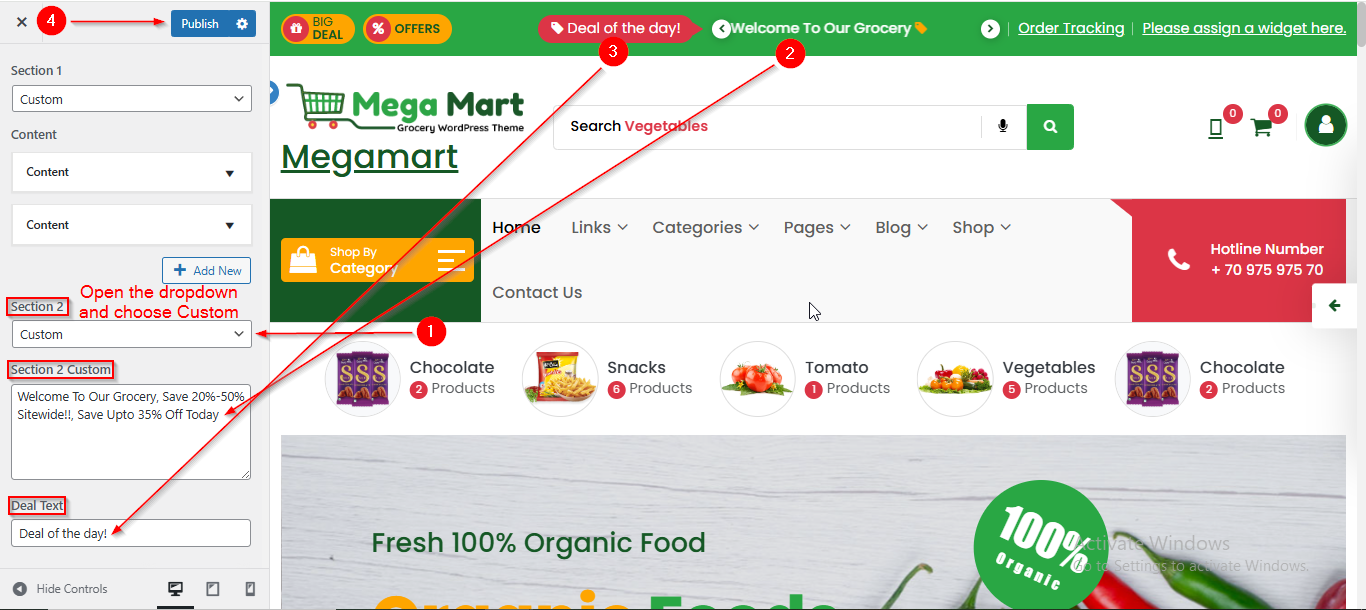
- From the Section 2 dropdown, select Custom.
- In the Section 2 Custom field, you can create your Section 2 content slider by separating each sentence or word with a comma.
- Use the Deal Text field to set or update the “Deal of the Day” text.
- Click Publish when you're done.
Note : If you choose Widget from the Section 2 dropdown instead, you can add any widget of your choice in that area.
(6) How to manage the Header Navigation Icons in Header Section ?
Before proceeding, ensure you're logged into your WordPress Dashboard.
To manage the Header Naviggation Icons in Header Navigation in Header Section, follow these steps:
- From the WordPress Dashboard, navigate to Appearance > Customize.
- On the Customizer page, go to Header > Header Navigation.
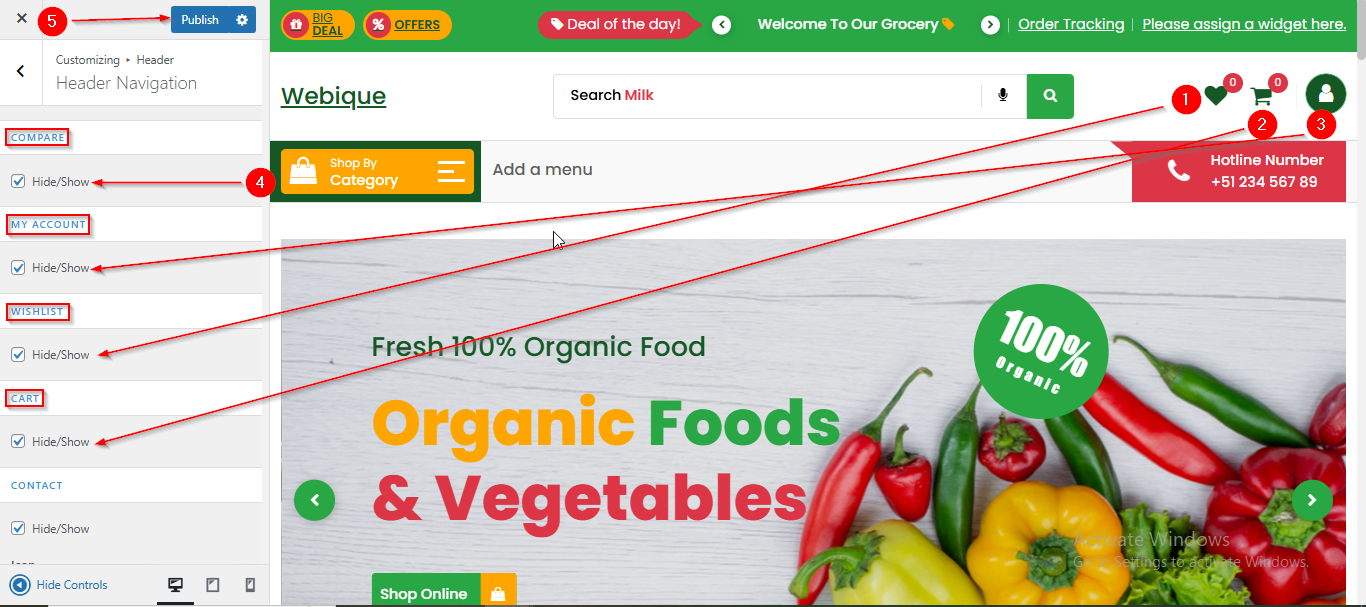
- Here, you can manage the Header Navigation Icons such as COMPARE , MY ACCOUNT , WISHLIST & CART by enabling or disabling them using the Hide/Show checkbox.
- Click Publish when you're done.
(7) How to manage the Contact Widget Area Content in Header Navigation in Header Section ?
Before proceeding, ensure you're logged into your WordPress Dashboard.
To manage the Contact Widget Area in Header Navigation in Header Section, follow these steps:
- From the WordPress Dashboard, navigate to Appearance > Customize.
- On the Customizer page, go to Header > Header Navigation.
- Scroll down until you see the CONTACT.
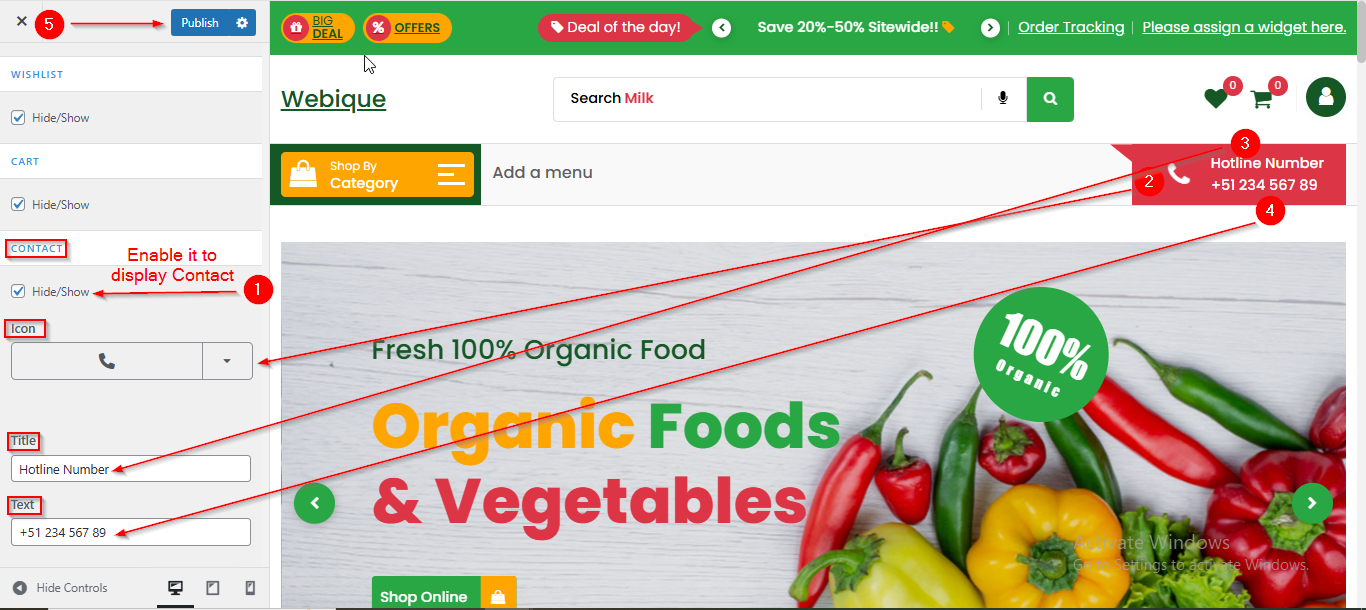
- Here you can manage the Contact Widget Area Content such as Icon , Title and Text.
- Click Publish when you're done.
Note : Ensure the checkbox labeled Hide/Show is checked if you want to display the Section.
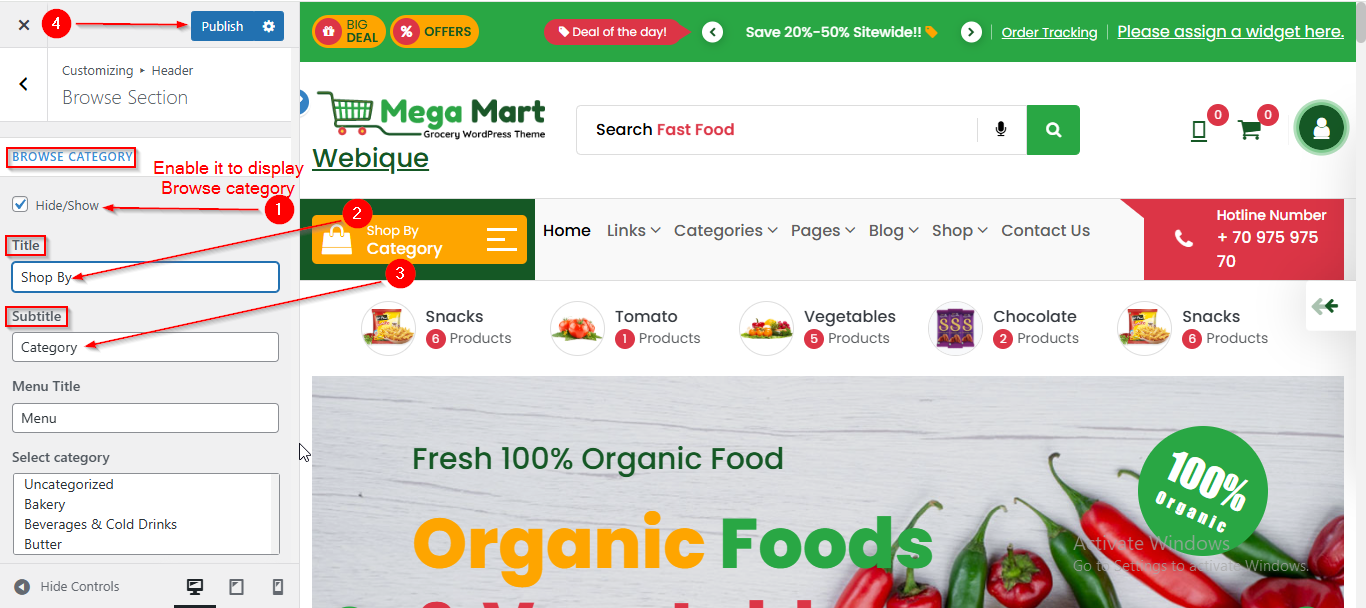
(8) How to manage the Browse Category Title and Subtitle in Header Section ?
Before proceeding, ensure you're logged into your WordPress Dashboard.
To manage the Browse Category Title and Subtitle in Header Section, follow these steps:
- From the WordPress Dashboard, navigate to Appearance > Customize.
- On the Customizer page, go to Header > Browse Section.
- Here you can manage the Title and Subtitle of Browse Category
- Click Publish when you're done.
Note : Ensure the checkbox labeled Hide/Show is checked if you want to display the Section.
(9) How to manage the Menu Title in Header Section ?
Before proceeding, ensure you're logged into your WordPress Dashboard.
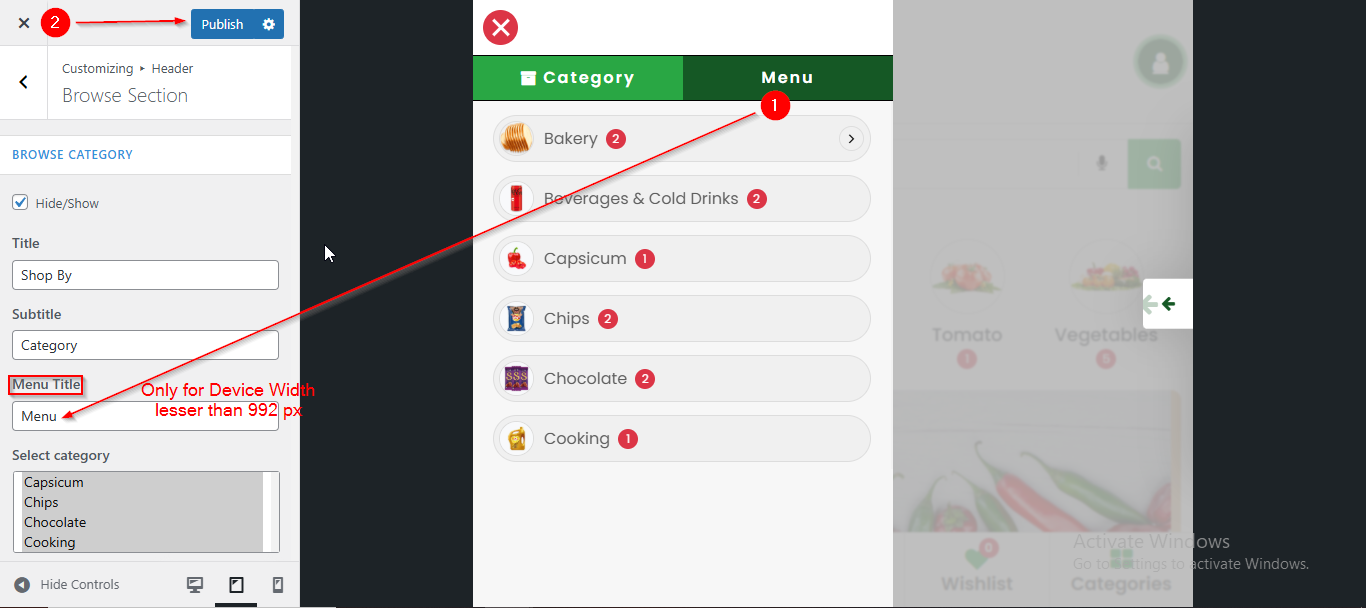
To manage the Menu Title in Header Section, follow these steps:
- From the WordPress Dashboard, navigate to Appearance > Customize.
- On the Customizer page, go to Header > Browse Section.
- Under Menu Title, you can manage the title as needed.
- Click Publish when you're done.
Note: This Menu Title setting will only apply to devices with a screen width smaller than 992px. On devices with a width of 992px or greater, the menu title will not be displayed.
(10) How to manage the Browse Category Menu and Product Search in Header Section ?
Before proceeding, ensure you're logged into your WordPress Dashboard.
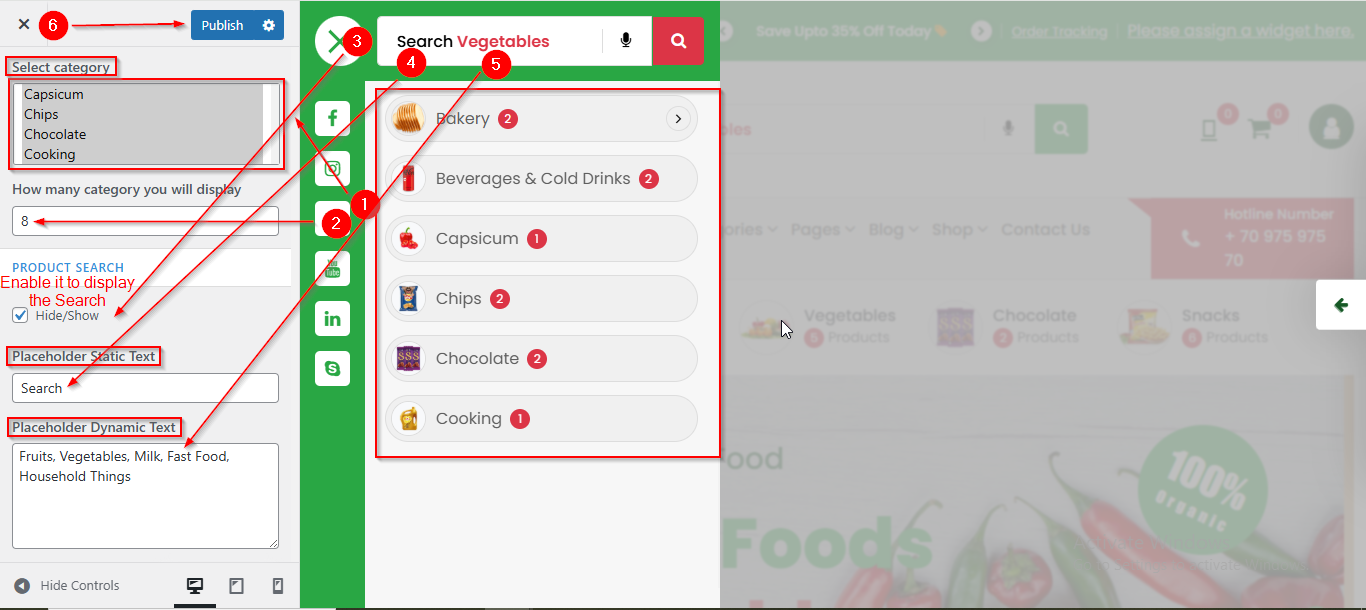
To manage the Browse Category Menu and Product Search in Header Section, follow these steps:
- From the WordPress Dashboard, navigate to Appearance > Customize.
- On the Customizer page, go to Header > Browse Section.
- Here you can manage the Browse Category Menu by Selecting the Category and No. of Category you want to be displayed.
- From the PRODUCT SEARCH Section , you can manage the Product search text and Product Search Slider by using commas after each sentence or word from Placeholder Dynamic Text text field.
- Click Publish when you're done.
Note : Ensure the checkbox labeled Hide/Show is checked if you want to display the Section.
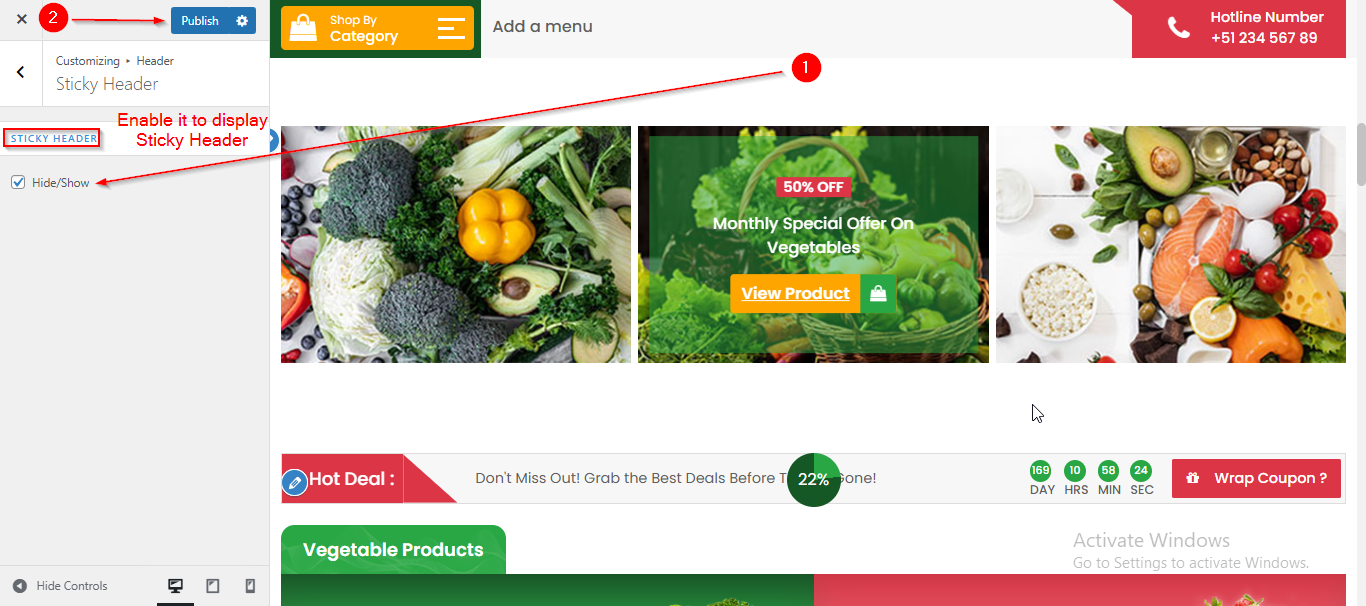
(11) How to manage the Sticky Header in Header Section ?
Before proceeding, ensure you're logged into your WordPress Dashboard.
To manage the Sticky Header in Header Section, follow these steps:
- From the WordPress Dashboard, navigate to Appearance > Customize.
- On the Customizer page, go to Header > Sticky Header.
- From here you can manage the Sticky Header by Enabling or Disabling the checkbox
- Click Publish when you're done.