Pet Bazaar Pro Theme Setup
Welcome to the Pet Bazaar Pro Theme Documentation! In this guide, we will walk you through the process of Setting Up your Pet Bazaar Pro theme.
So without any further delay, Let's move forward to the Topic in the Upcoming Articles Below.
(1) How to Download the Theme File Package ?
Before proceeding, ensure that you have successfully completed the payment and purchased the theme. You will only be able to download the theme package if the purchase has been properly processed.
Steps to Download the Theme File Package:
1. First of all, go to this link: https://sellerthemes.com/
2. Here, make sure that you are signed in to your account.
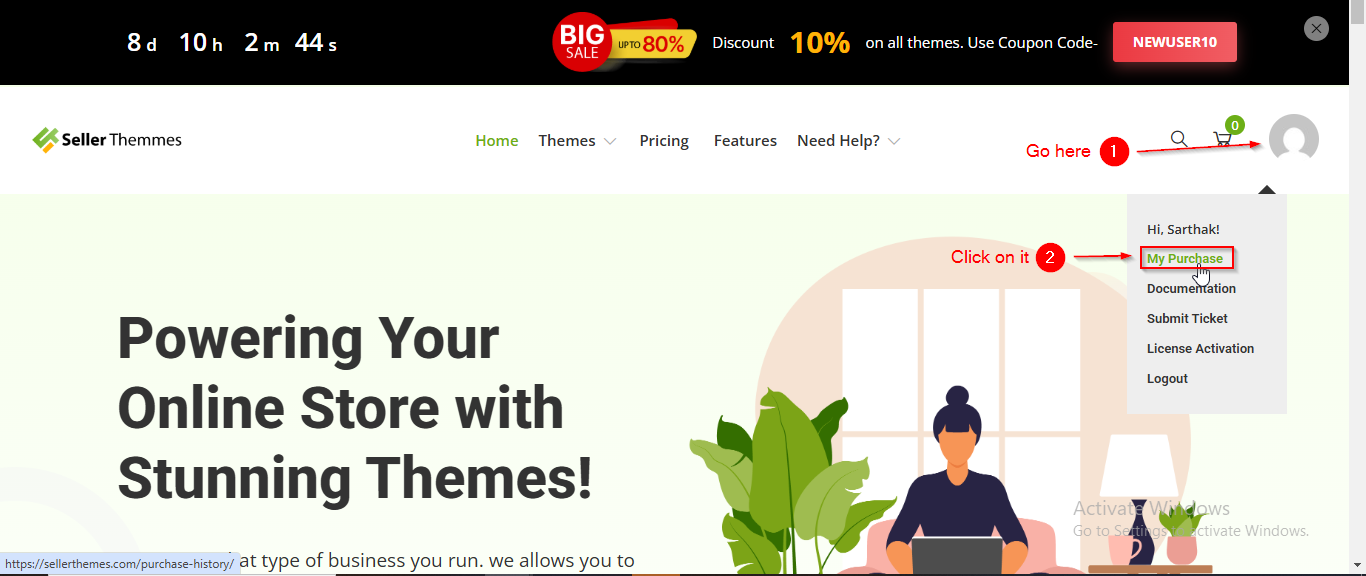
3. On the https://sellerthemes.com/ page, move your cursor to the Account Icon on the very right side of the menu.
4. A submenu will open, where you have to click on My Purchase.
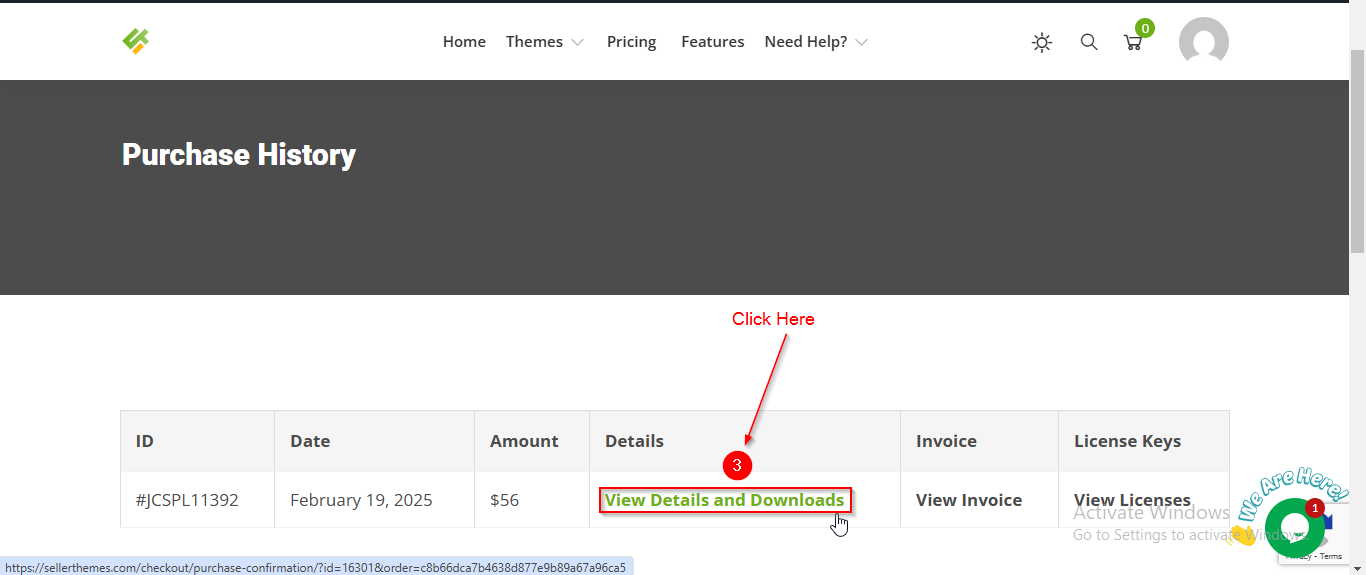
5. On the Purchase History page, scroll down a bit until you see the View Details and Downloads in the Details column.
6. Click on View Details and Downloads.
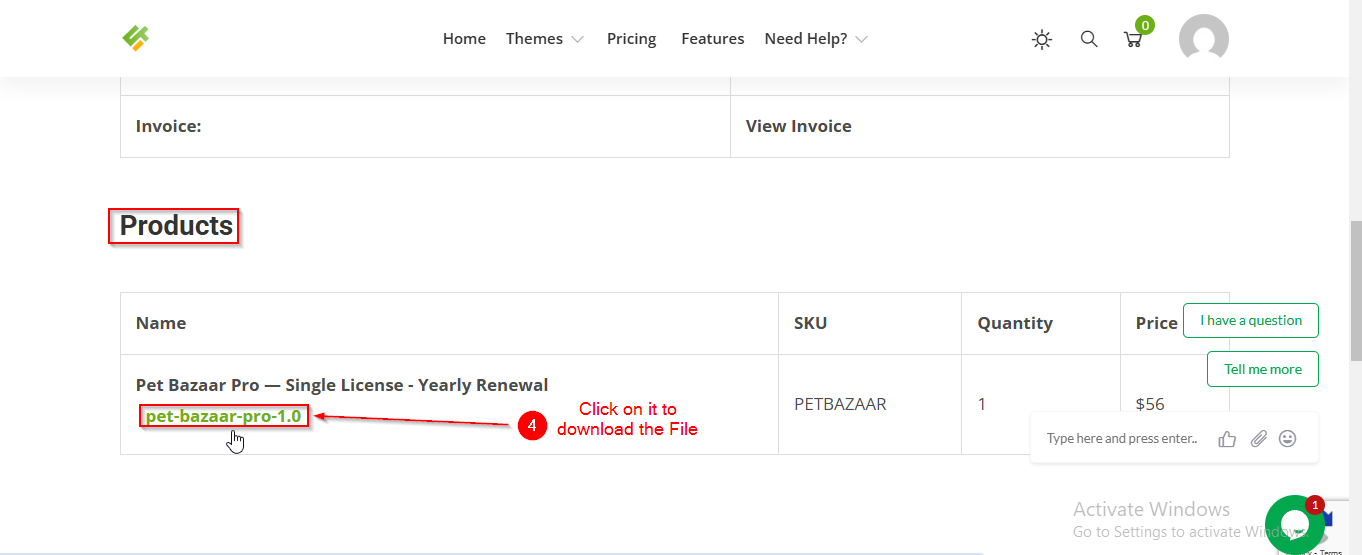
7. You will reach the Payment Confirmation page. From here, scroll down a bit until you see the Products section.
8. Now, you will see the pet-bazaar-pro-1.0 option.
9. Click on it to download the Theme File Package.
(2) How to Get the License Key ?
Before proceeding, ensure that you have successfully completed the payment and purchased the theme. You will only be able to download the theme package if the purchase has been properly processed.
There are various ways to get your License Key. You can either check your email or follow these steps:
Steps to Get the License Key :
1. First of all, go to this link: https://sellerthemes.com/
2. Here, make sure that you are signed in to your account.
3. On the https://sellerthemes.com/ page, move your cursor to the Account Icon on the very right side of the menu.
4. A submenu will open, where you have to click on My Purchase.
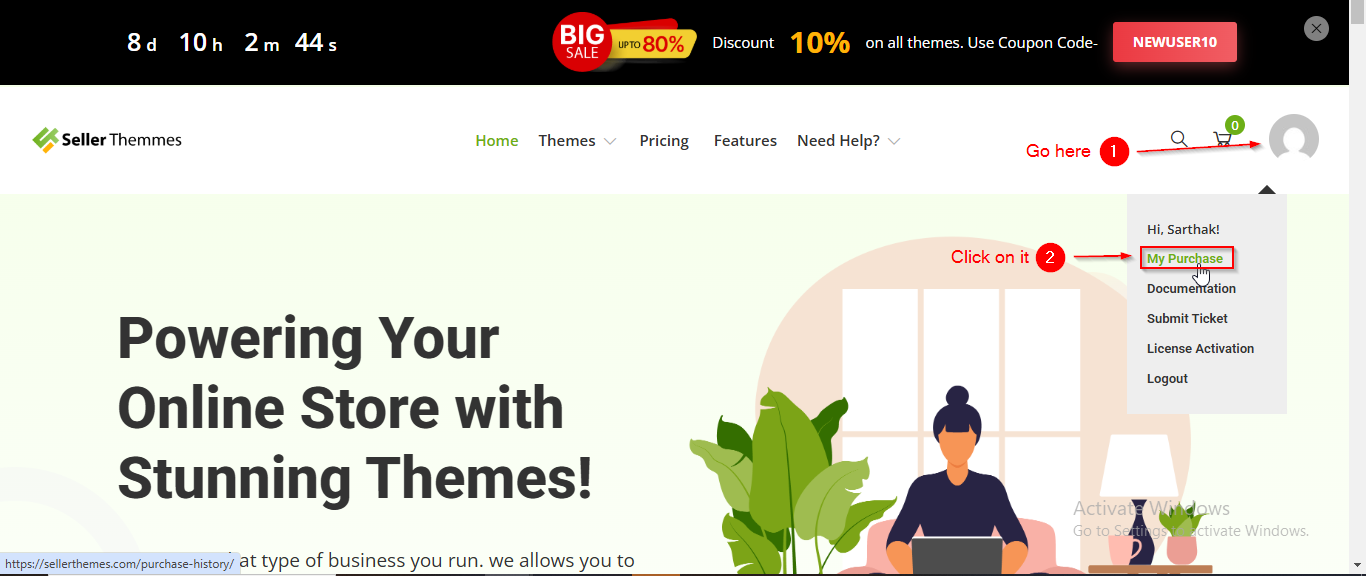
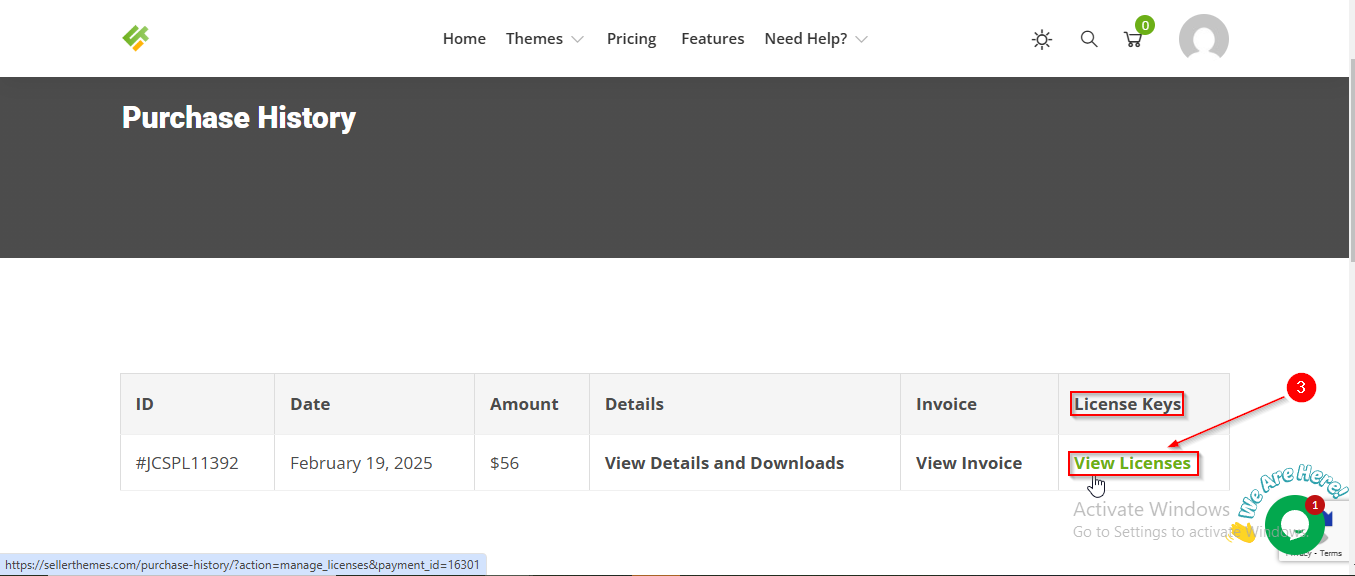
5. On the Purchase History page, scroll down a bit until you see the View Licenses in the License Keys column.
6. Click on View Licenses.
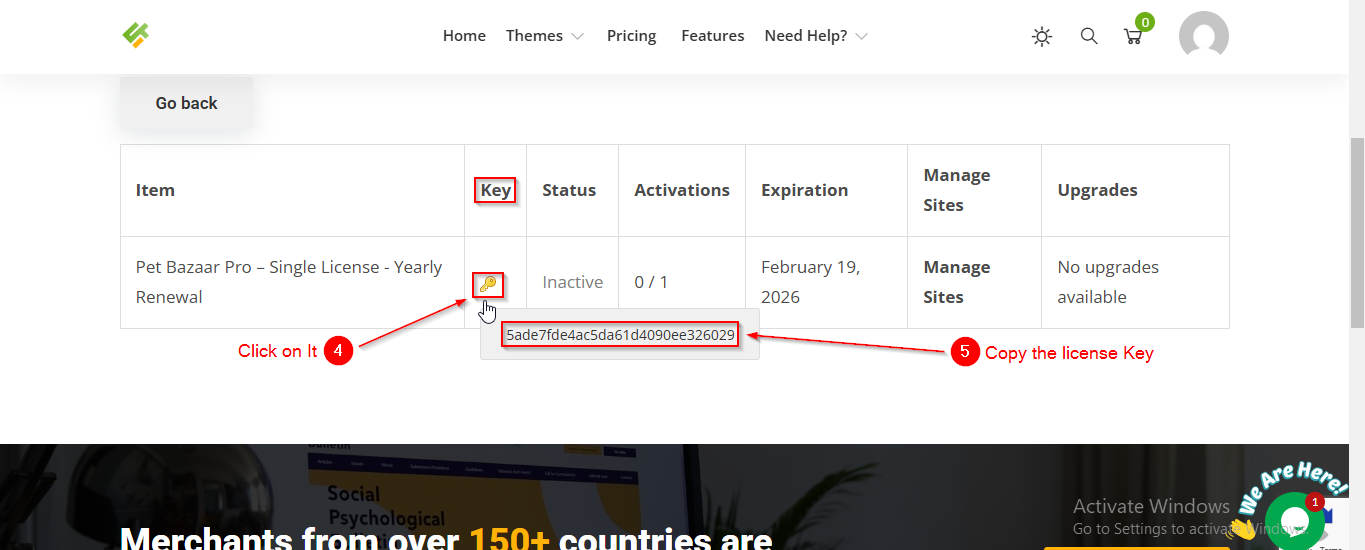
7. You will reach the Payment History page. From here, scroll down a bit until you see the Key Icon in the Key Column .
8. Click on the Key Icon to get the License Key.
9. This will be your License Key—copy it for future use.
(3) How to Activate the License Key ?
Before proceeding, ensure you're logged into your WordPress Dashboard.
To activate the License Key , follow these steps:
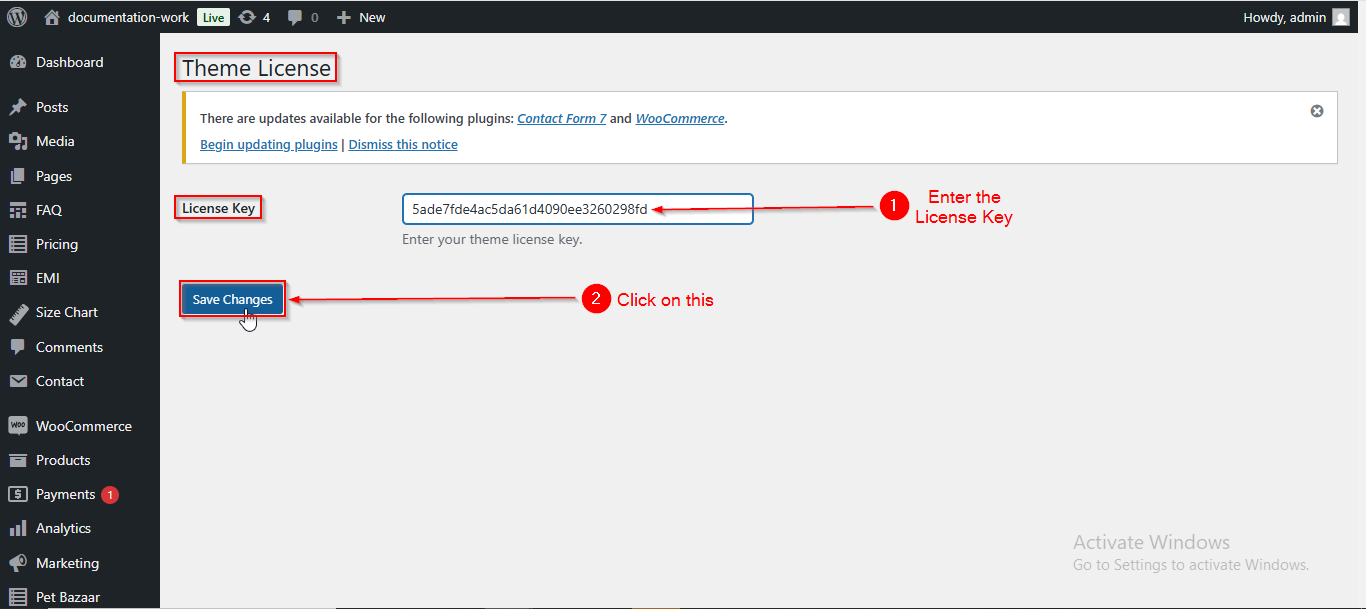
1. From the WordPress Dashboard, navigate to Appearance > Theme License.
2. On the Theme License page, enter your License Key in the License Key field.
3. Click on Save Changes.
4. After saving, a new option called License Action will appear.
5. From License Action , Click on Activate License.
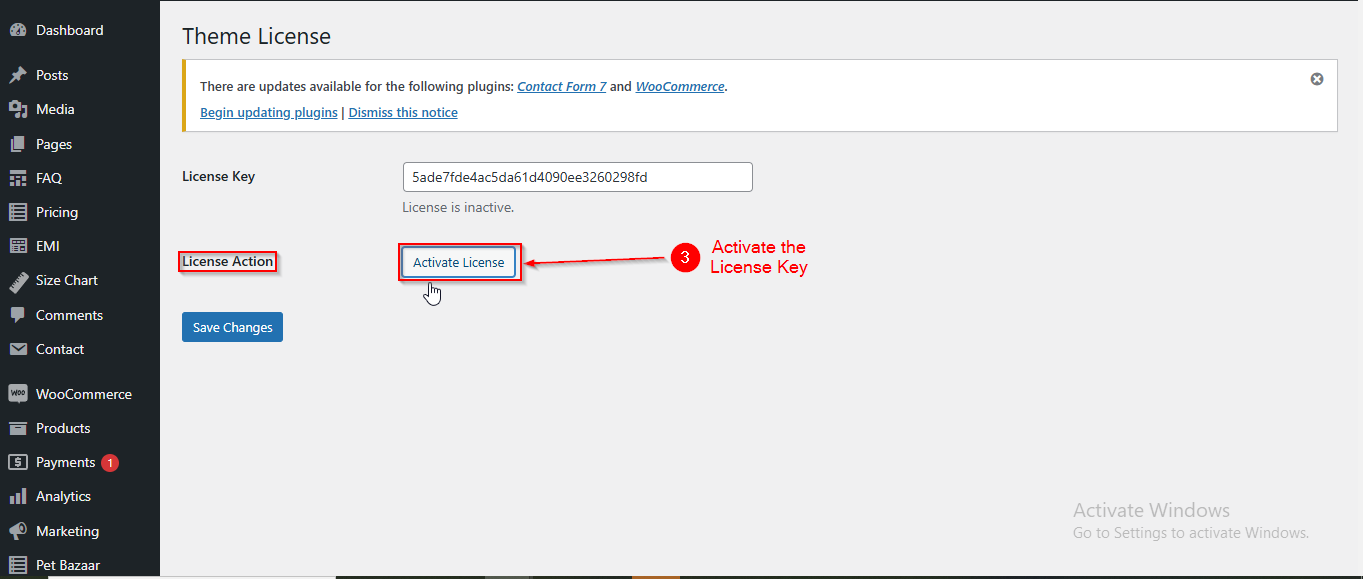
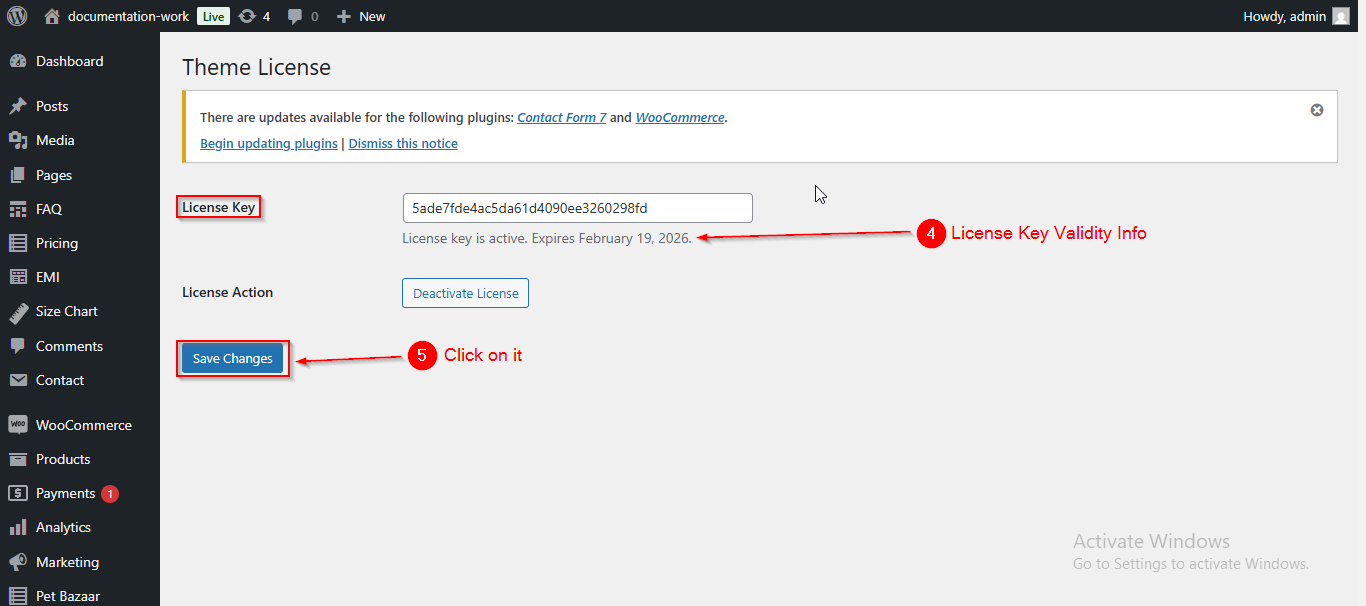
6. Your License Key will now be activated, and you can see its validity details just below the License Key field.
7. Click Save Changes again to finalize the activation.
Important Note : Make sure you have activated the Pet Bazaar Pro theme first; only then can you activate the License Key.
(4) How to Install and Activate the Theme ?
Before proceeding, ensure you're logged into your WordPress Dashboard.
Step-by-Step Instructions:
- Step 1: From the WordPress Dashboard, Navigate to Appearance > Themes.
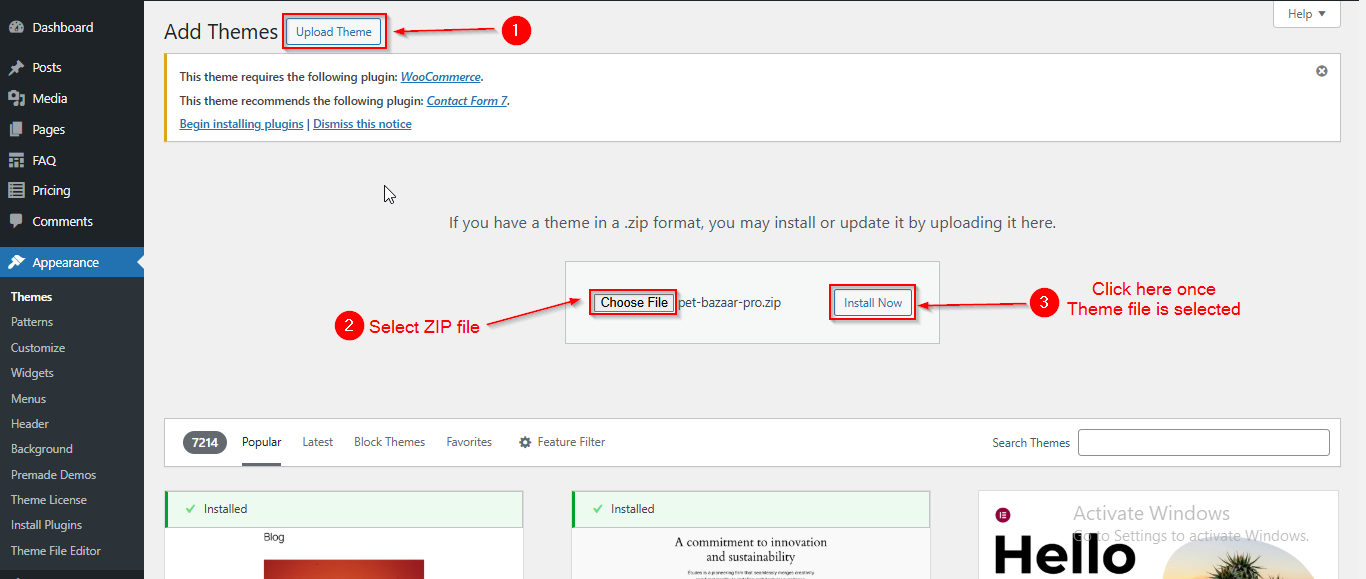
- Step 2: Click on Add New Theme.
- Step 3: At the top of the page, click on Upload Theme. You will be prompted to upload the Pet Bazaar Pro theme file from your computer.
- Step 4: Select the theme package file, then click Install Now.
Once the installation is complete, activate your theme by clicking on Activate.
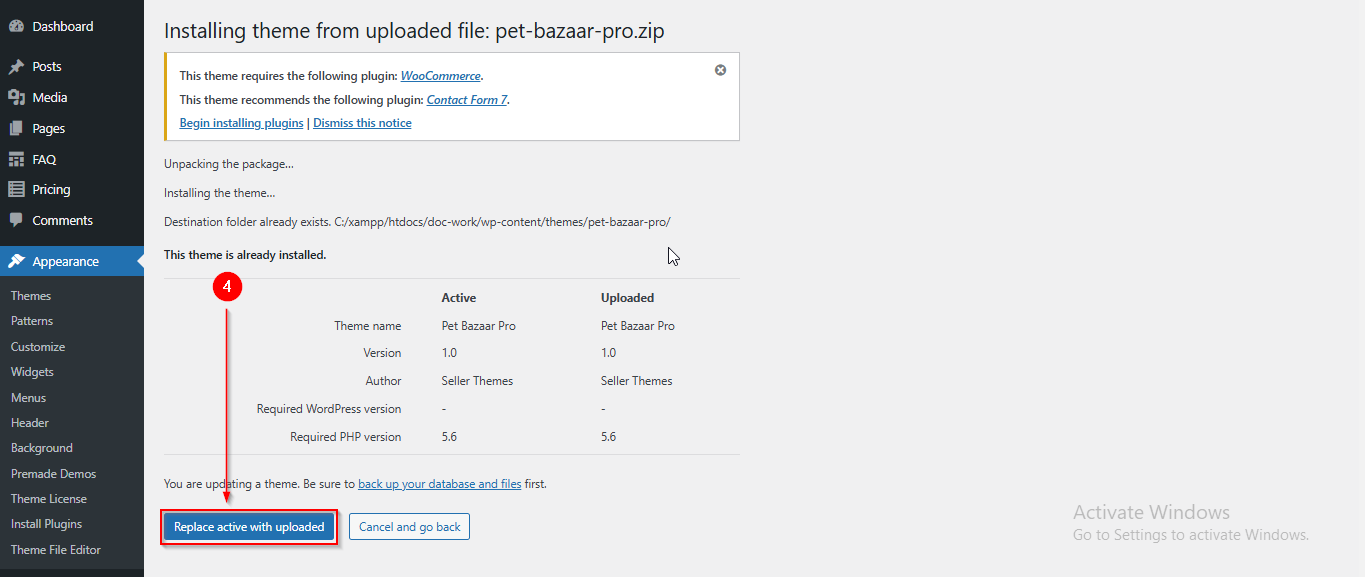
- Step 5: Once the theme is installed, click on the Replace active with uploaded button to activate the newly uploaded theme.